Photoshop Setup
Photoshop Setup
Photoshop must be set with a Remote Connection initially.
When the Conduit tries to set this initially it may fail after a long wait. Be patient and let the Conduit realize the connection has not been set yet.
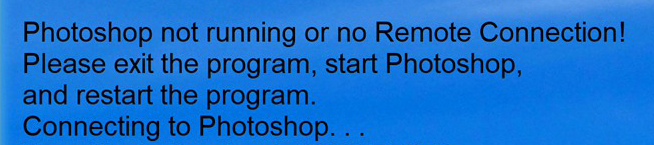
Photoshop Needs Remote Connection Setup
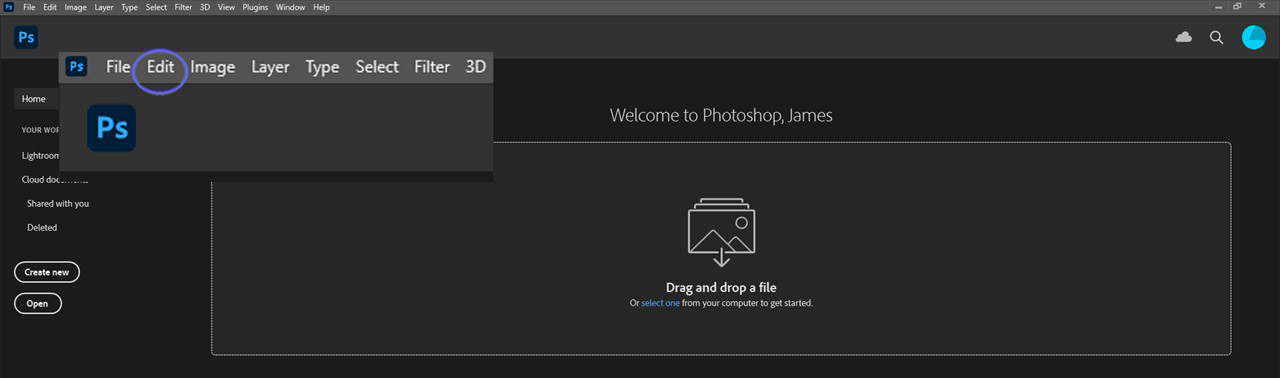
When you first install Conduit, the program brings you here as part of the Setup process. Make sure Photoshop is running, then click the Edit/Remote Connections menu item in Photoshop. This option can also be reached through Edit/Preferences/Plug-Ins.
When you registered, there was a password field that defaults to 'conduit', unless you set your own during registration. Click the checkbox to activate the Remote Connection, then enter the password in the Remote Connection password field. This would be the default of 'conduit' or the one you entered in the registration page.
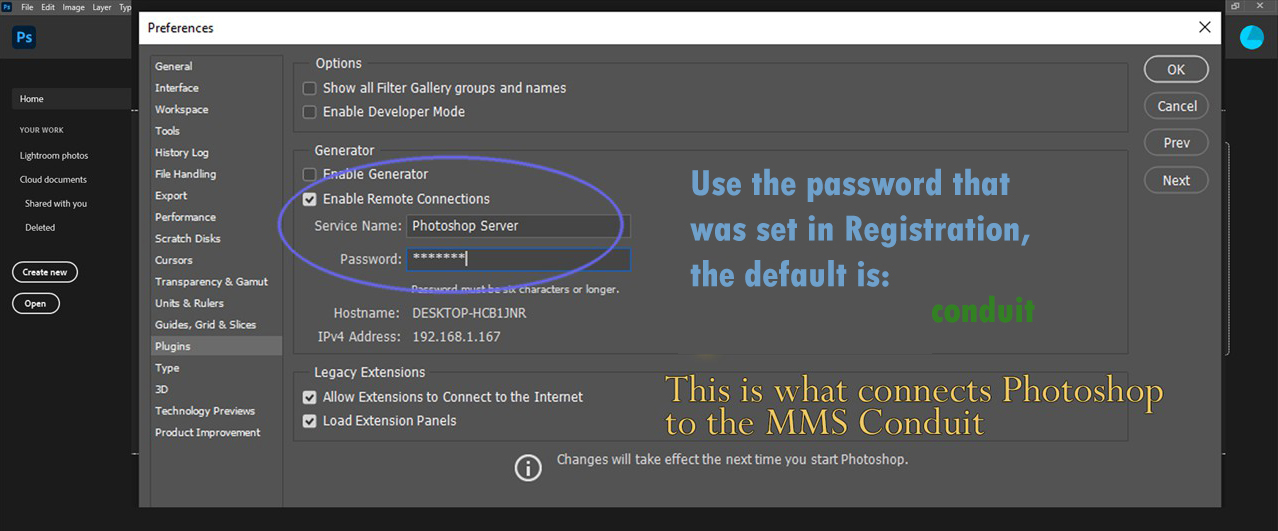
It is important to close Photoshop once you hit OK and the setting is accepted by Photoshop, then re-open Photoshop. Once you Go Back from this section of the Guide, the Conduit will close. Make sure Photoshop is running again and then start the Conduit.
If you get the same issue the next time through, take note of the password that Conduit is showing on the blue screen, and change the remote connection password again. Always be sure to close Photoshop and restart it so that the setting takes effect before starting Conduit again.