Message Excel Overview
The Excel MMS Conduit works with Photoshop for advanced communication of your creative output with your clients, associates, and for direct marketing.
It's an alternative to the overcrowding of your personal phone for business activities, especially for the multitude of photos that are involved with everyday activity.
It gives you the ability to directly access photos that you take or are shared with you by your associates in a very organized way, sitting at your desktop computer.
You can share large Jpg and your Psd files directly with another person or collaborate direcily with another person's onduit number.
Starting the Conduit
The Photoshop-connected MMS Conduit always starts in 'Auto Mode' waiting to take in messages through the 'Secure Number' you purchased with your subscription.
The Conduit will work without Photoshop, it just limits your ability to edit files qyuckly.

You can refer to the Guide in the MMS Conduit for details about how to message in and out of Photoshop directly.
This document will show you how to use Excel to organize and access your message traffic to better control and find messages to assist your communication needs.
Click the Excel button at the top of the screen on the right to access the master Excel sheet which retains all of your message traffic through the Secure number.
The Assistant program helps with Excel processes and will sit on the taskbar minimized while Excel is connected to the Conduit. After another 10 seconds or so, the Excel workbook will load.
The UserForm that sits above Excel will allow you to filter and select the messages that you want to work with in Conduit, you may not have to edit cells directly, just checkbox select messages after they are garnered into your Working sheet.
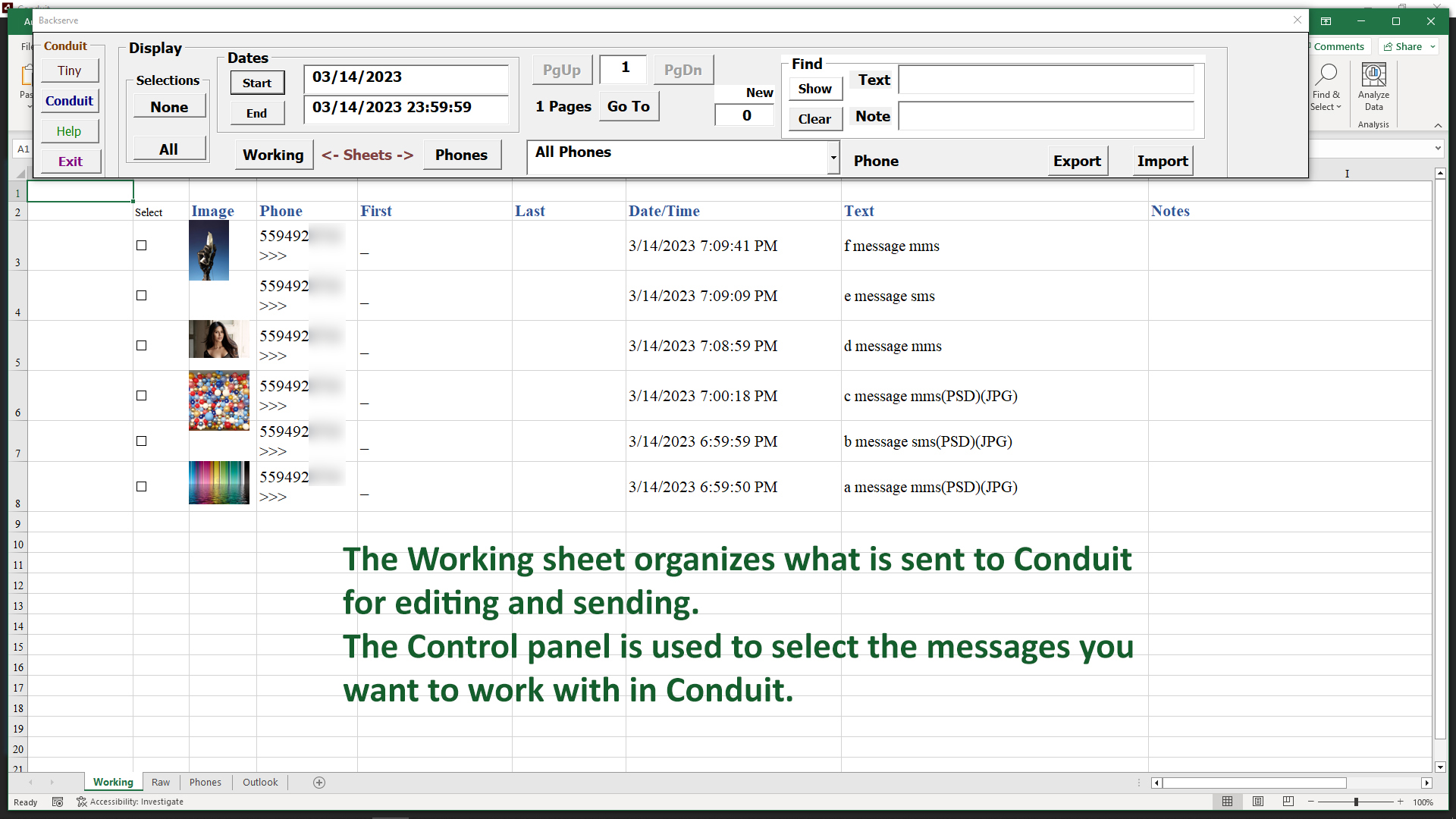
The Excel workbook opens and most of your message handling is with the Working sheet and the Control Menu as shown here.
The Control Menu provides a way in and out of the Excel workbook, and the way to use the Extended functions for searching and selected your messages, both incoming and outgoing.