Phone Numbers
Every message that is absorbed by Excel has a phone number from the sender, or a phone number to a recipient, from the Secure Number that is part of your Conduit subscription.
The Excel workbook that is part of Conduit has a worksheet where these numbers are stored.
You may add phone numbers to the sheet along with name, email, and company informtion that helps track the phone numbers in the Conduit system.
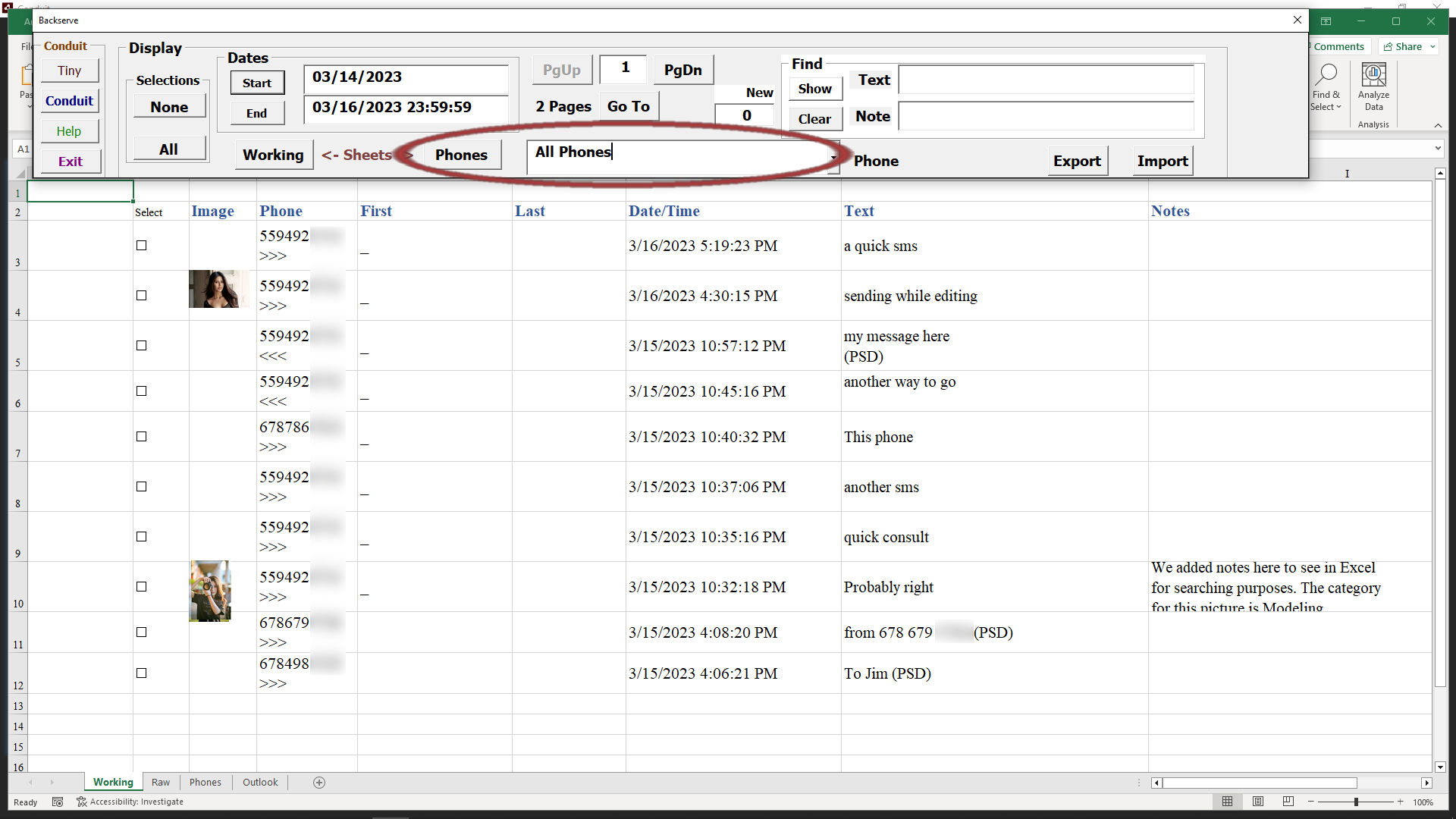
The simple way to get to the Phones sheet is to use the Phones button.
Every message that is absorbed by Excel has a phone number from the sender, or a phone number to a recipient, from the Secure Number that is part of your Conduit subscription.
The Excel workbook that is part of Conduit has a worksheet where these numbers are stored.
You may add phone numbers to the sheet along with name, email, and company information that helps track the phone numbers in the Conduit system.
The simple way to get to the Phones sheet is to use the Phones button.
Click the Phones button to move to the Phones worksheet.
Numbers are listed in the sheet as Conduit encounters them, you can enter personal information in the phones sheet to help you better understand who you are communicating with.
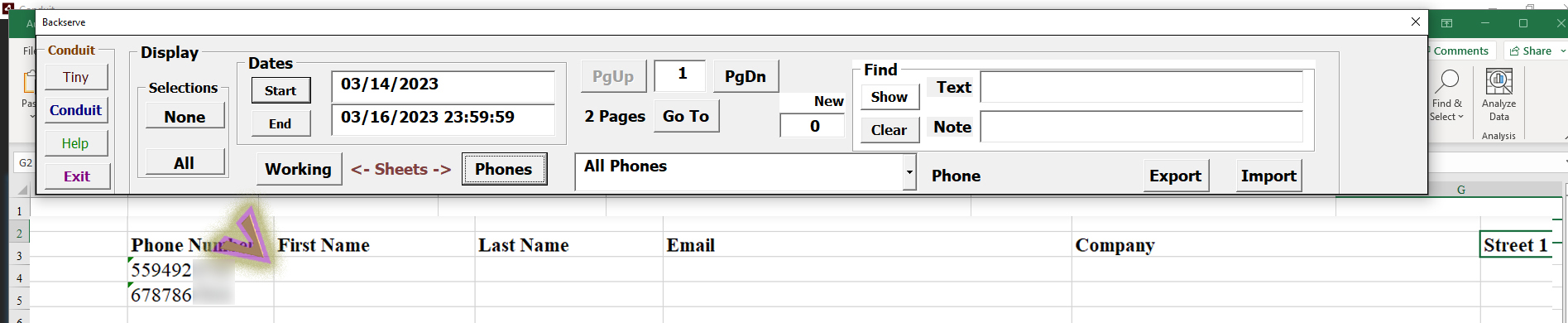
In our example, we entered first, last, email and company info for one of the phone numbers.
When you are done entering the information, click on the Working button to return to the Working sheet.
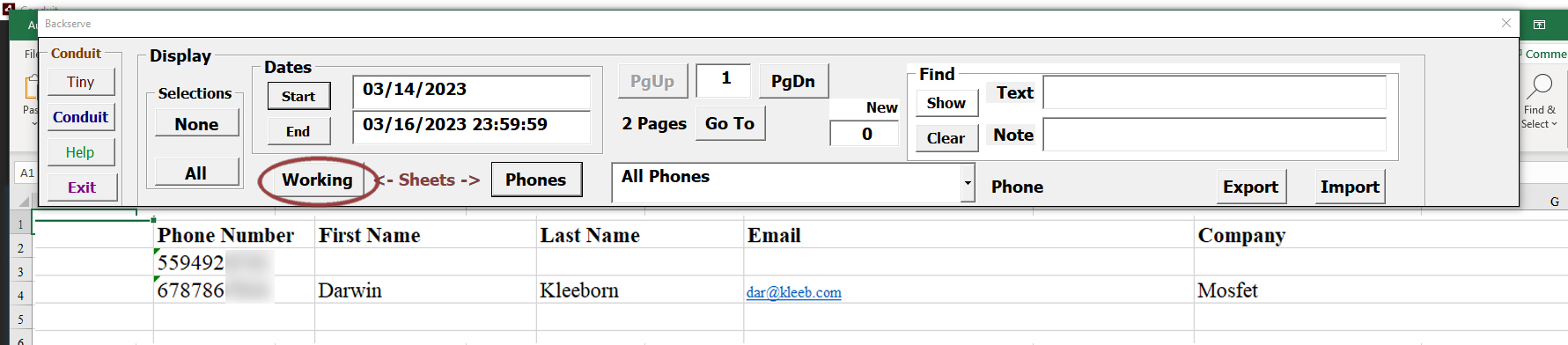
The Working sheet will now reflect what information you entered for that phone number when it lists messages you have set criteria for on the Control panel.
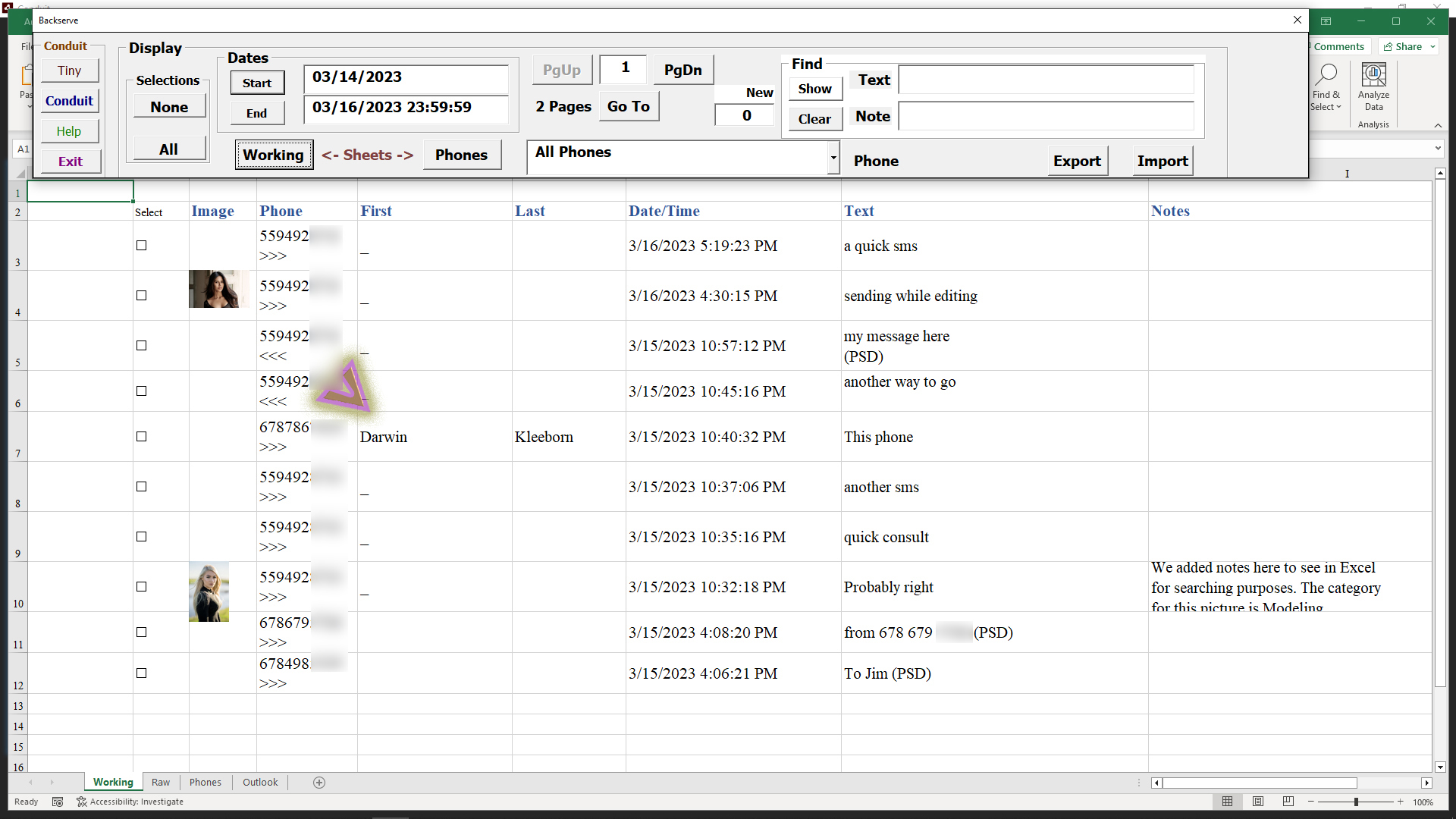
The Control panel has a drop-list labeled 'All Phones' as the normal criteria for selecting messages of interest in Excel.
You can select one of the phone numbers, then all Working sheet entries will be of that particular phone number.
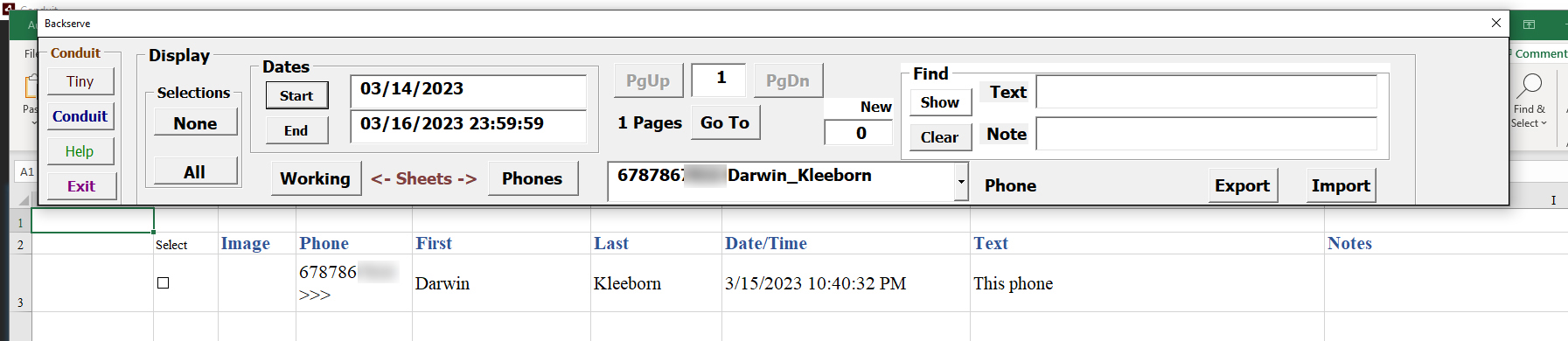
Select the phone number we added information to in the previous steps.
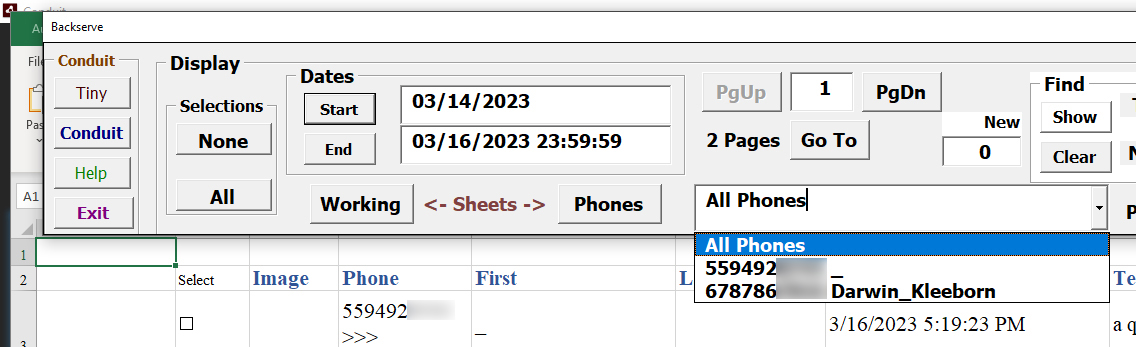
Now the Working sheet will only display messages for that phone number.
Remember to set the drop-list back to All Phones when you are done with that particular phone number.
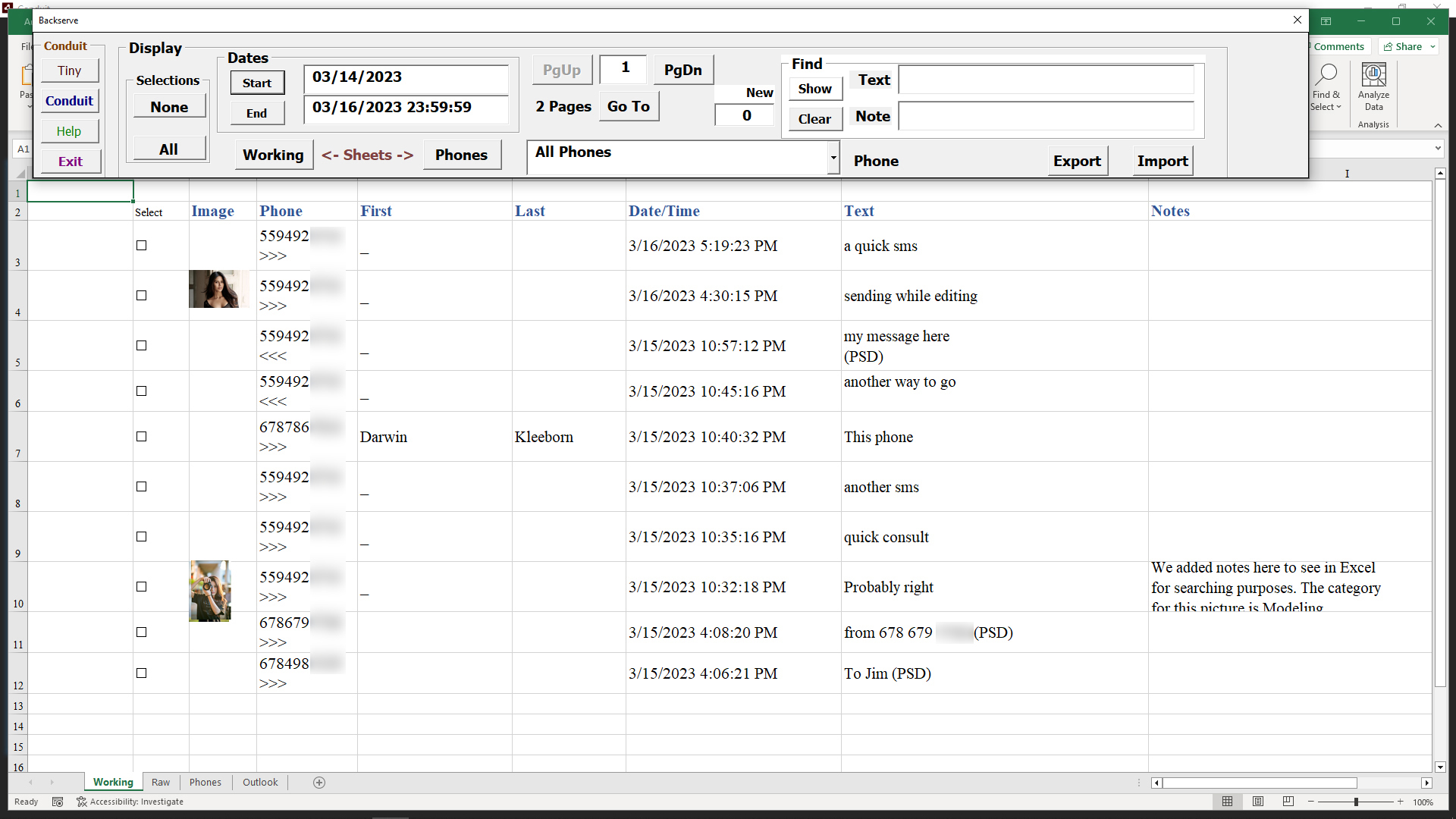
When set to All Phones, the Working sheet returns to displaying message information for all phone numbers.
Information added to phone numbers in Excel will also change the information for the Conduit. When information is changed in Conduit it will also be displayed in Excel.