Colab Panel Overview
This web panel connects you to a Colab Conduit whose identification phone number you connected to. The Conduit owner has allowed you to upload and download files as well as send and receive messages specifically connected to your identification phone number.
The phone numbers are used as identification in the Colab Conduit system, the system does not send SMS or MMS messages to your phone. You can operate the web panel on a mobile device or desktop computer of your choice.
The identifying phone numbers linking you to the Colab Conduit system do not restrict where you operate the web panel.
Basic Operation
The web panel allows you to send a message, upload a file with a text message line, receive messages, or receive files (download).
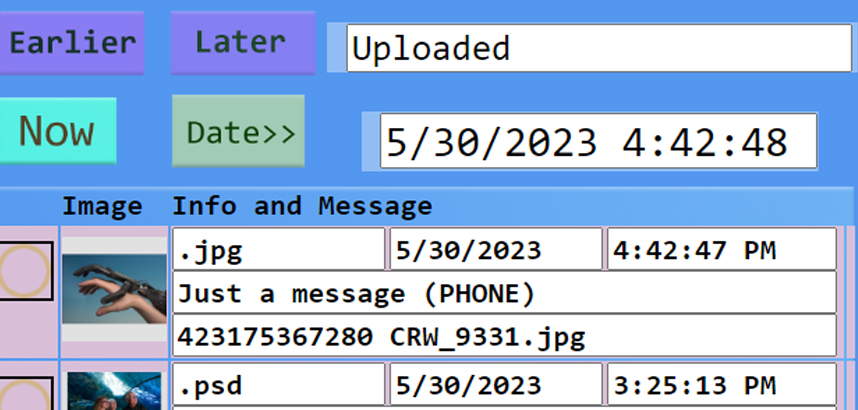
The list of messages is the bottom half of the panel, showing the transactions in and out of the Colab Conduit that you are connected to.
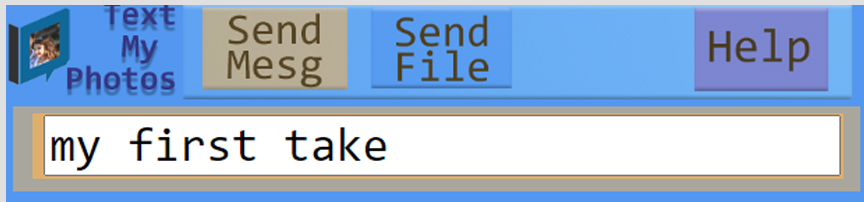
The buttons at the top of the panel control the functions of Send message, Send File, and when a list item is selected, Receive File.
Send Message
Enter text in the orange message area, and click the Send Mesg button. This will be visible to the Colab Conduit user even if they are in Workflow mode with Photoshop. The Send function is useful for adding information about previously sent files or requesting files from the Colab Conduit user.
Send File
Click the Send File button. A file upload panel replaces the message area at the bottom of the web page. Enter a text message to go along with the file that you will upload.
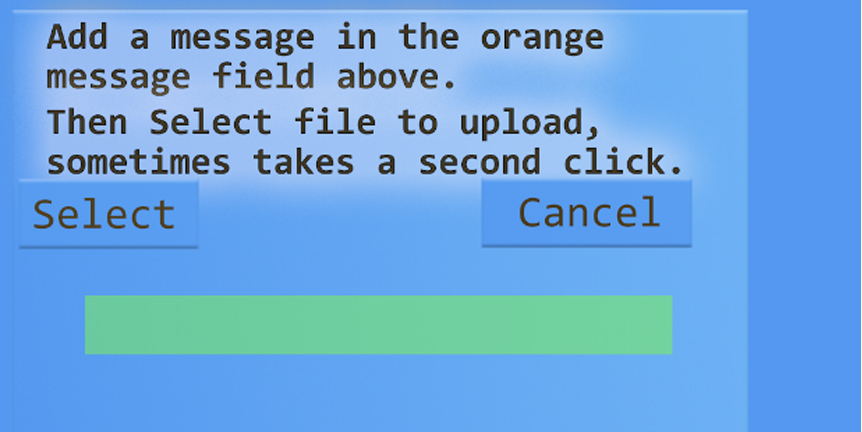
Click the Select button and wait for the file open dialog to appear. Sometimes it takes a second click of the Select button when using mobile devices. Select the JPG or PSD file that you wish to upload, one only, and click Open.
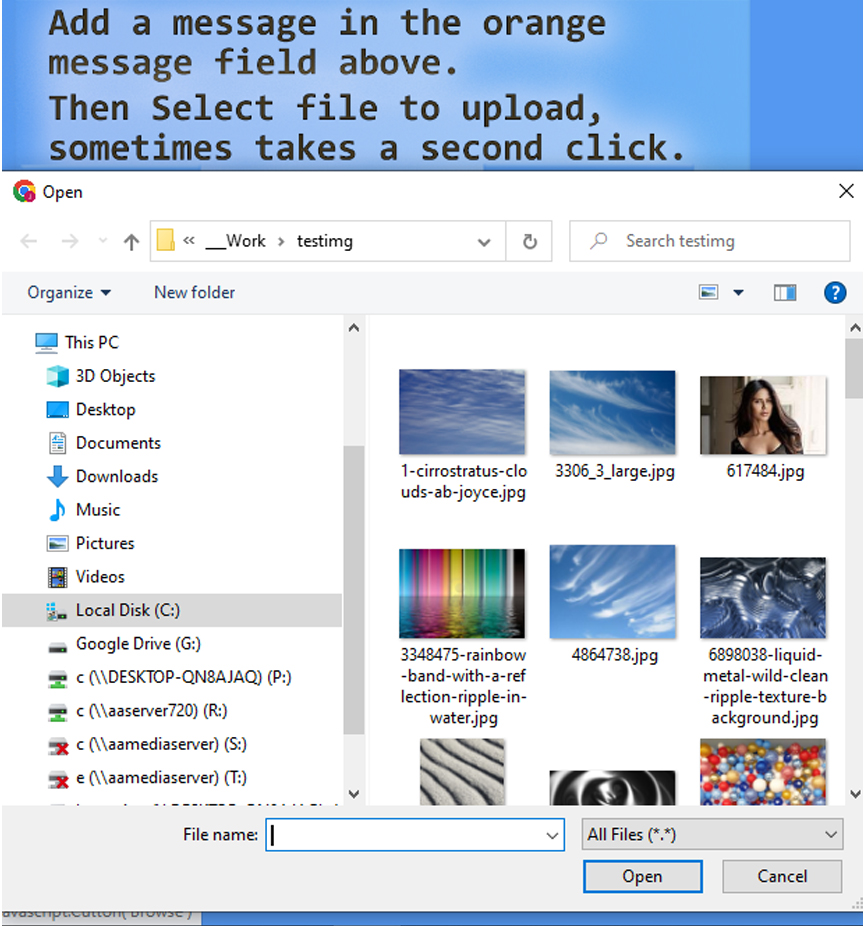
You can Cancel at any time. To accept and upload the file, click the Upload button.
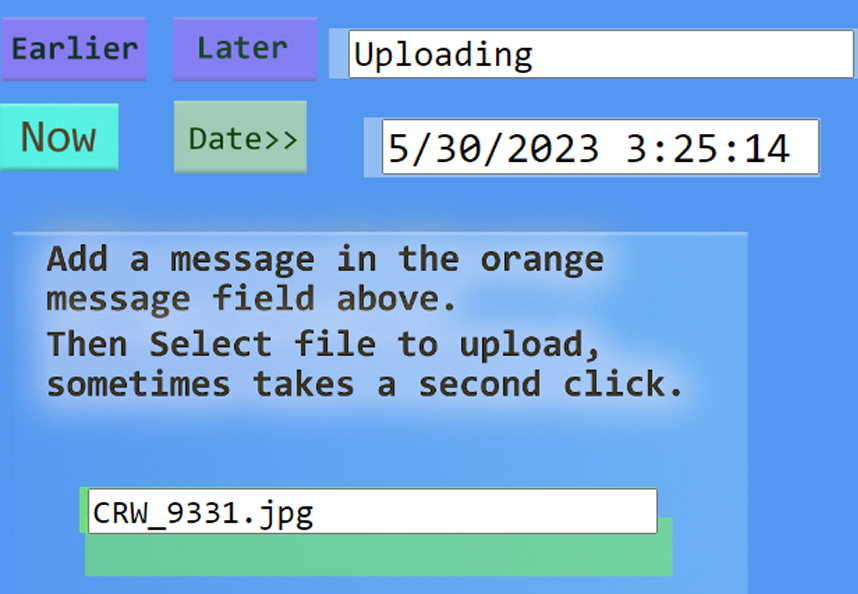
After the file is uploaded, the web page will show the message transactions again, but not yet the current upload that is being processed by the server.
The message transactions refresh fairly often, but you can always click the Now button to get a better response to see the upload result.