Collaborate with Photoshop
Send Large Design Files

Using Photoshop with your desktop PC, you can now send and receive SMS and MMS directly through your own Secure phone number.
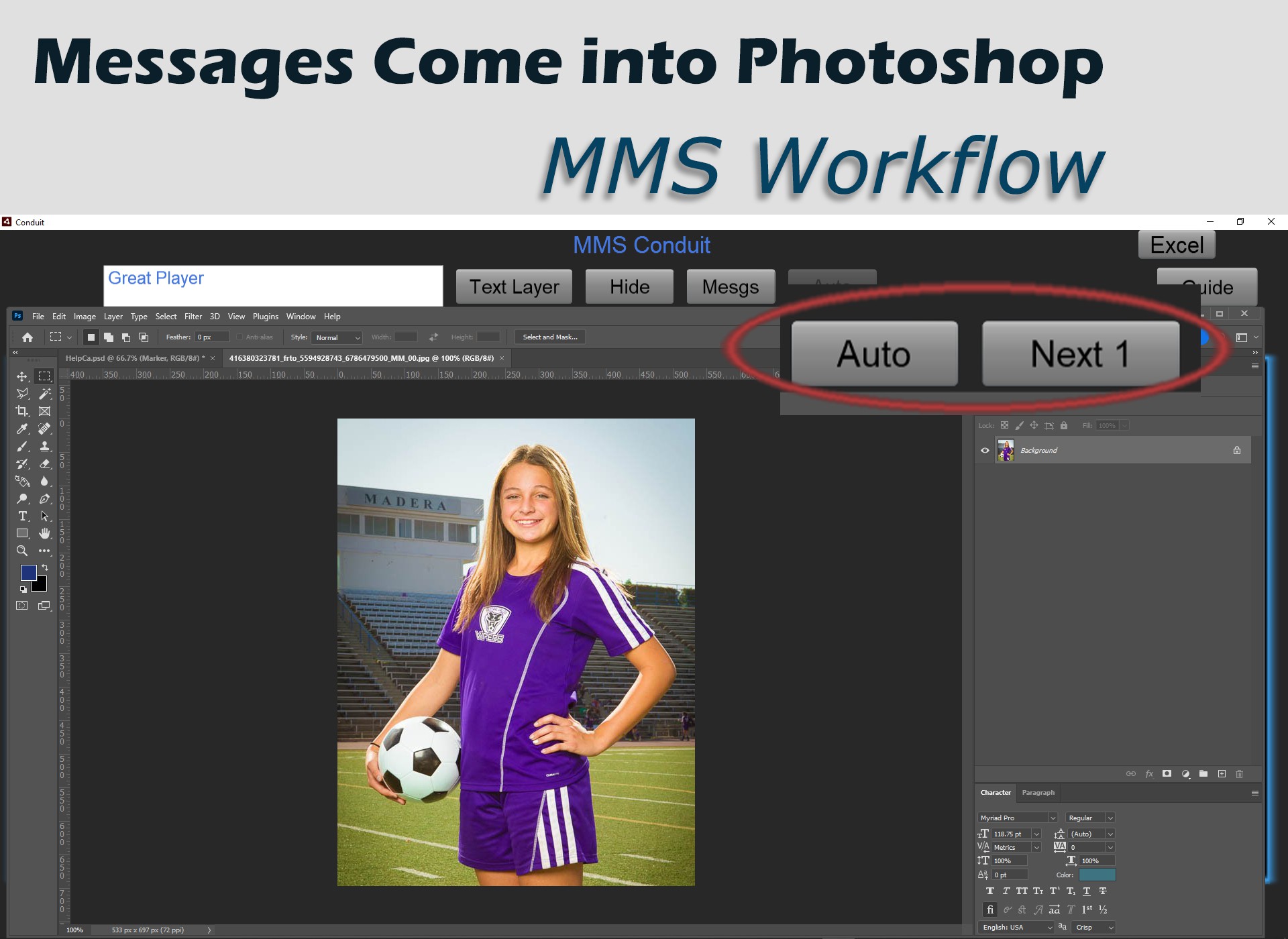
Messages are delivered to your PC in the background while in Photoshop.
Accept photos and PSDs to Collaborate securely with friends and colleagues.
You can be in front of your PC working to create your content and your Conduit handles everything through Photoshop!

  • Messages Come Into Photoshop
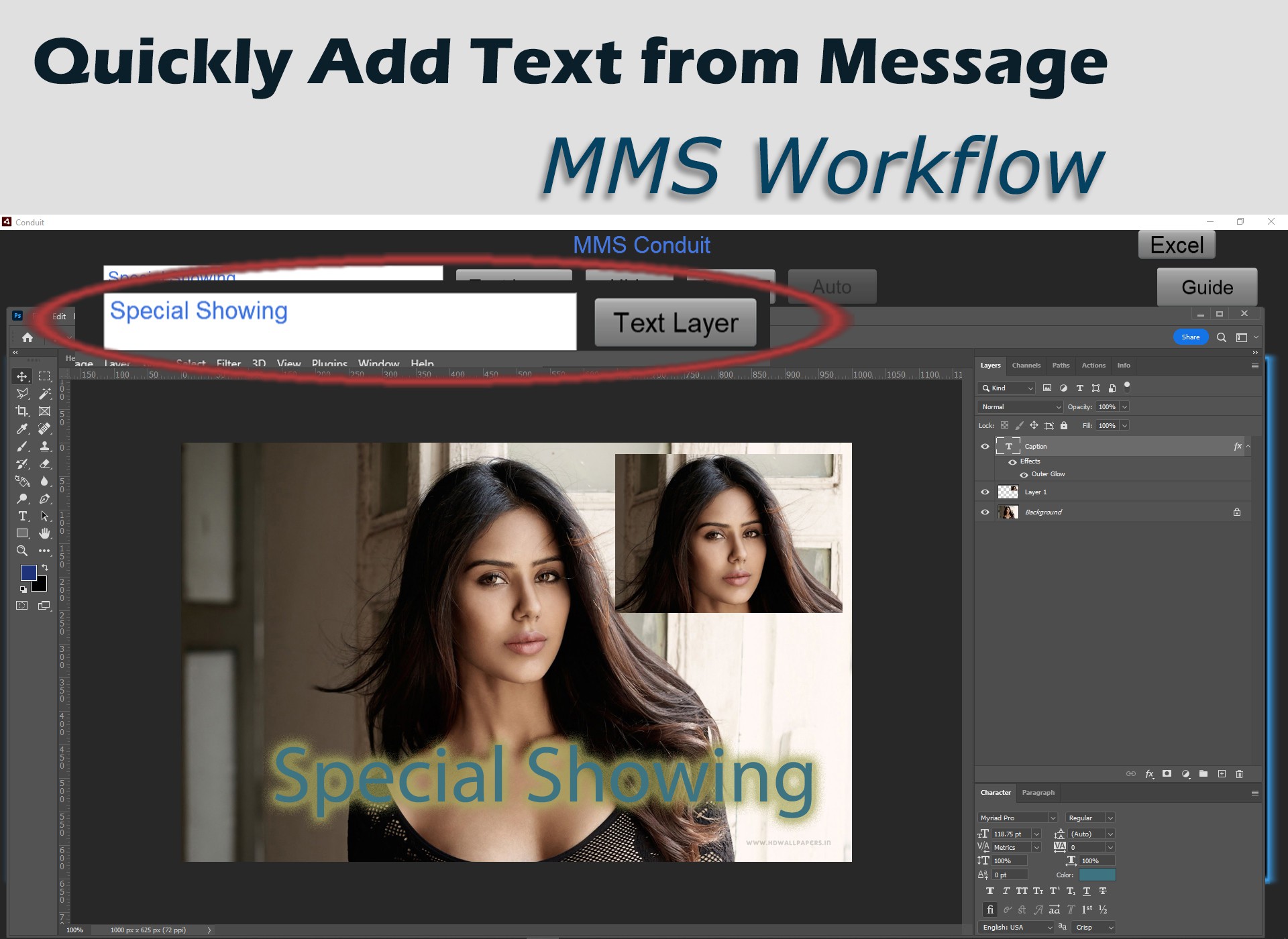
  • Quickly Add Text From Message
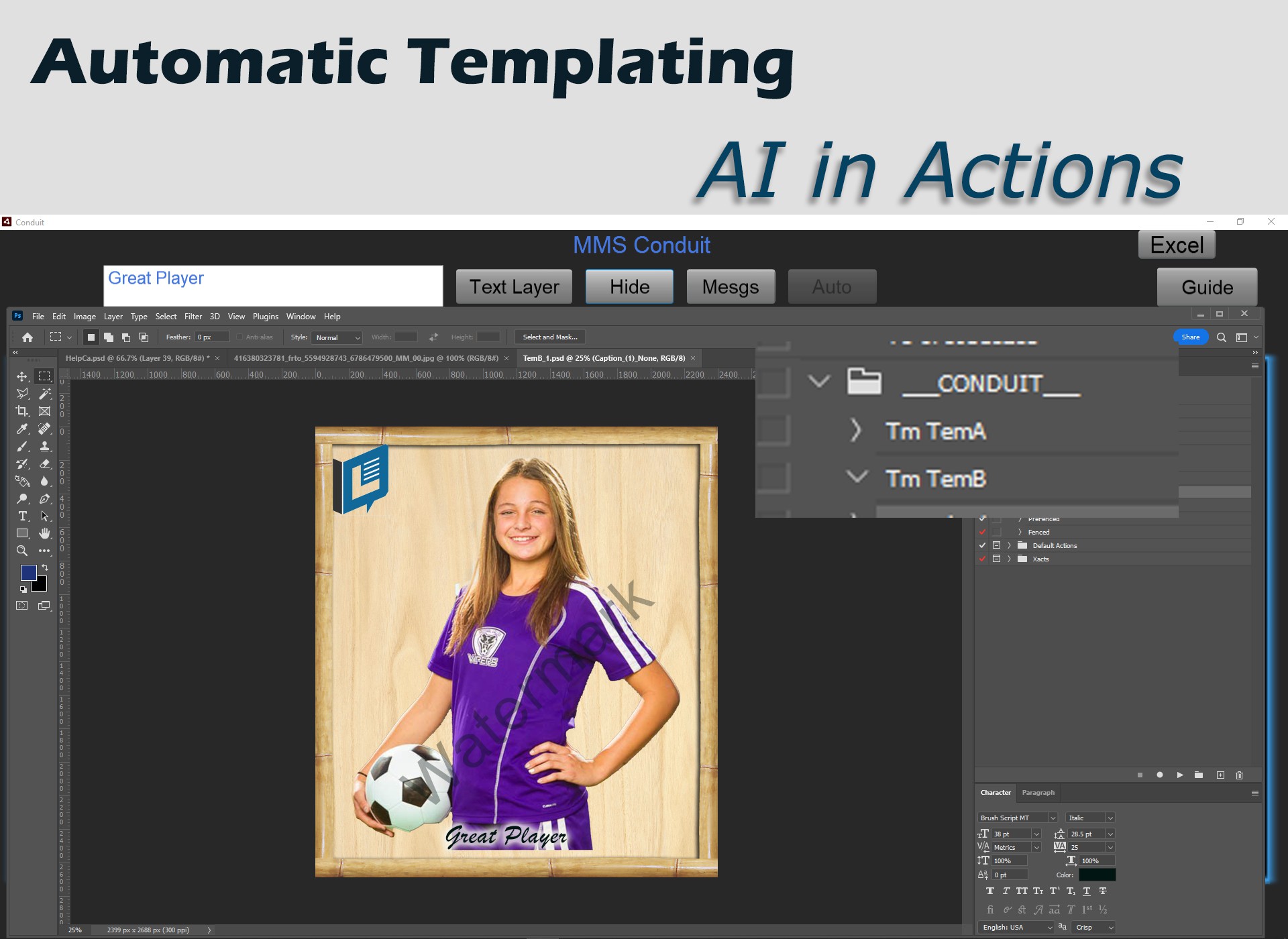
  • Templating with Actions AI
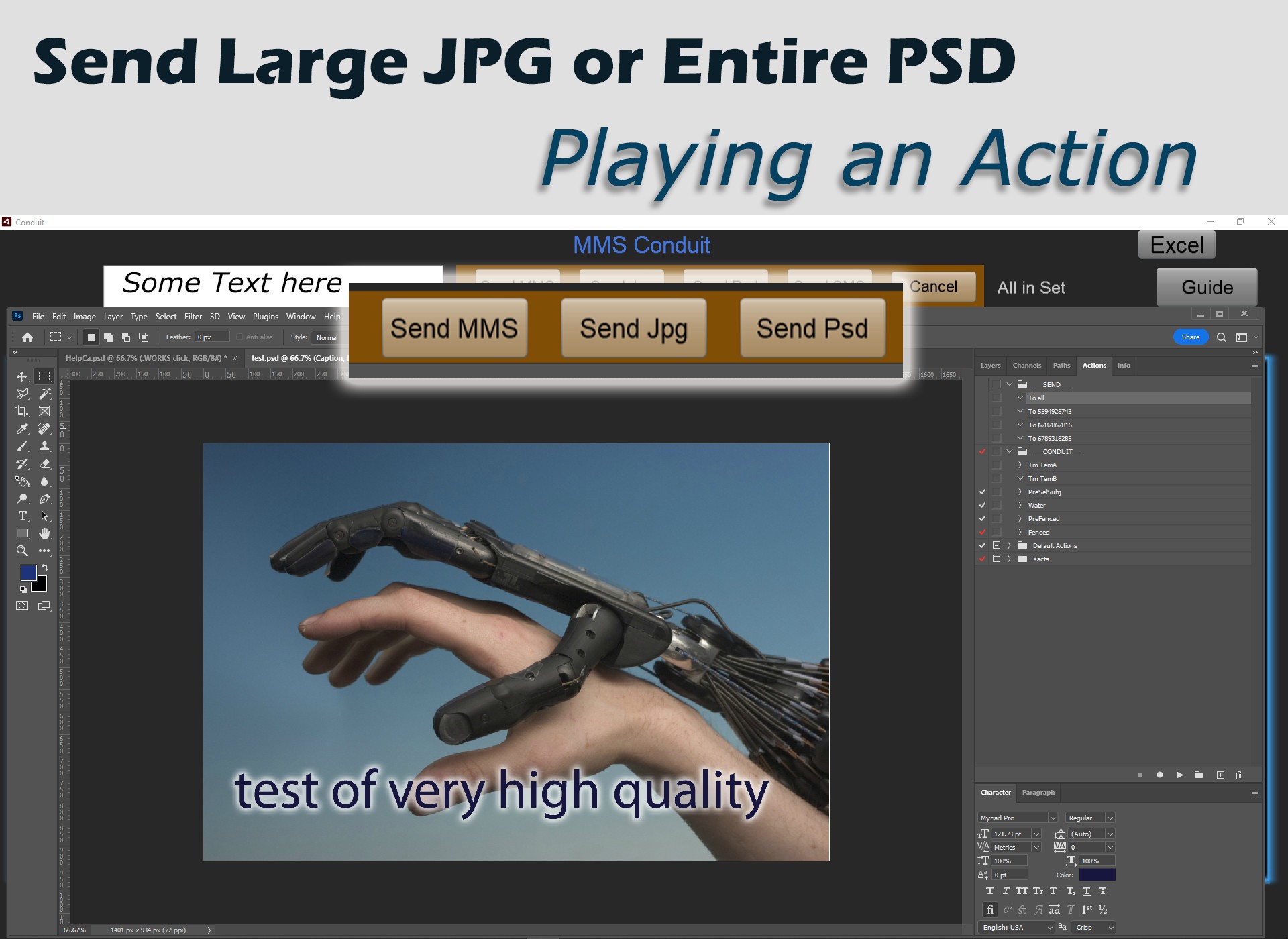
  • Send Large Files with Action
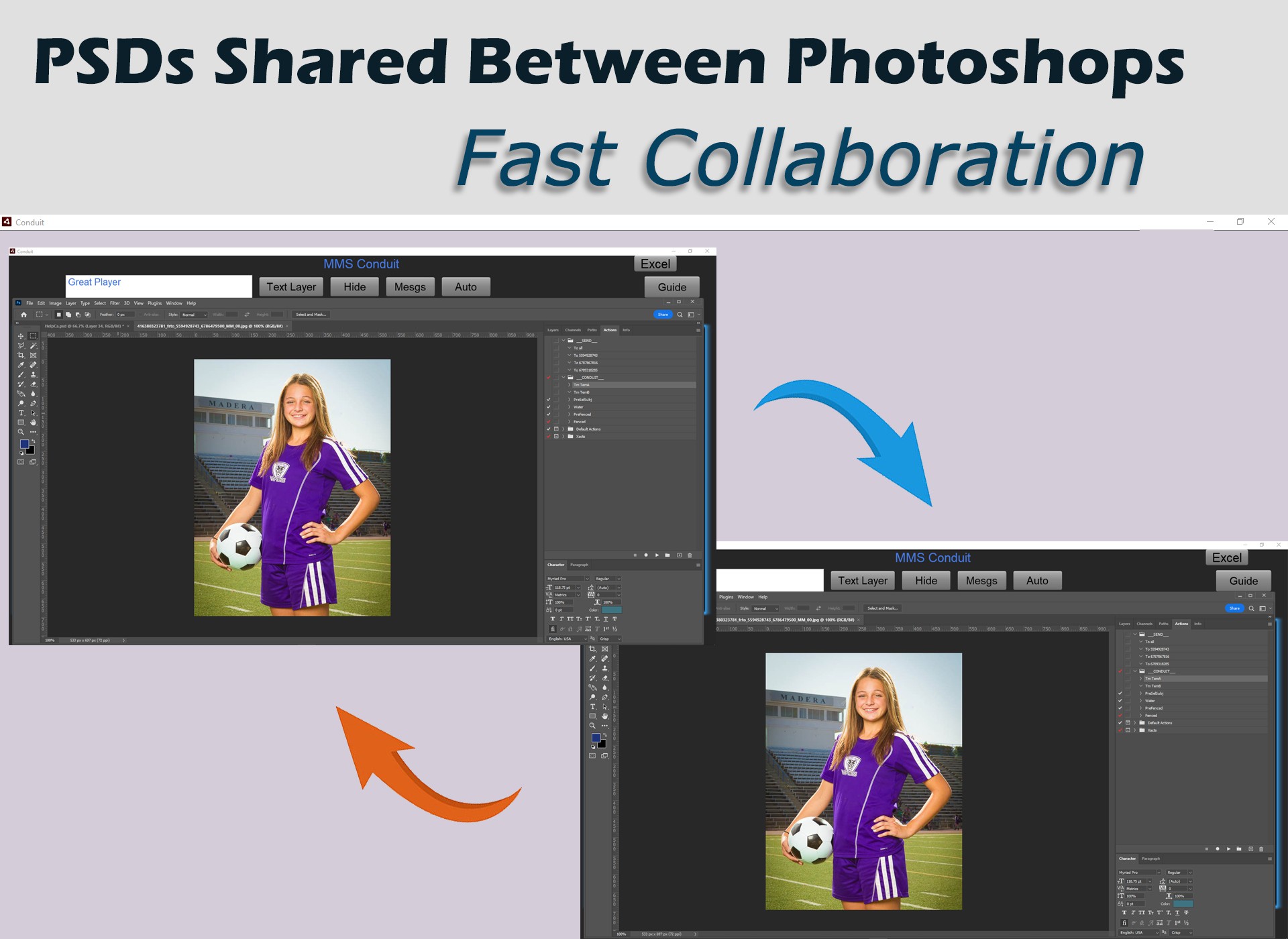
  • PSDs Shared Between Photoshops
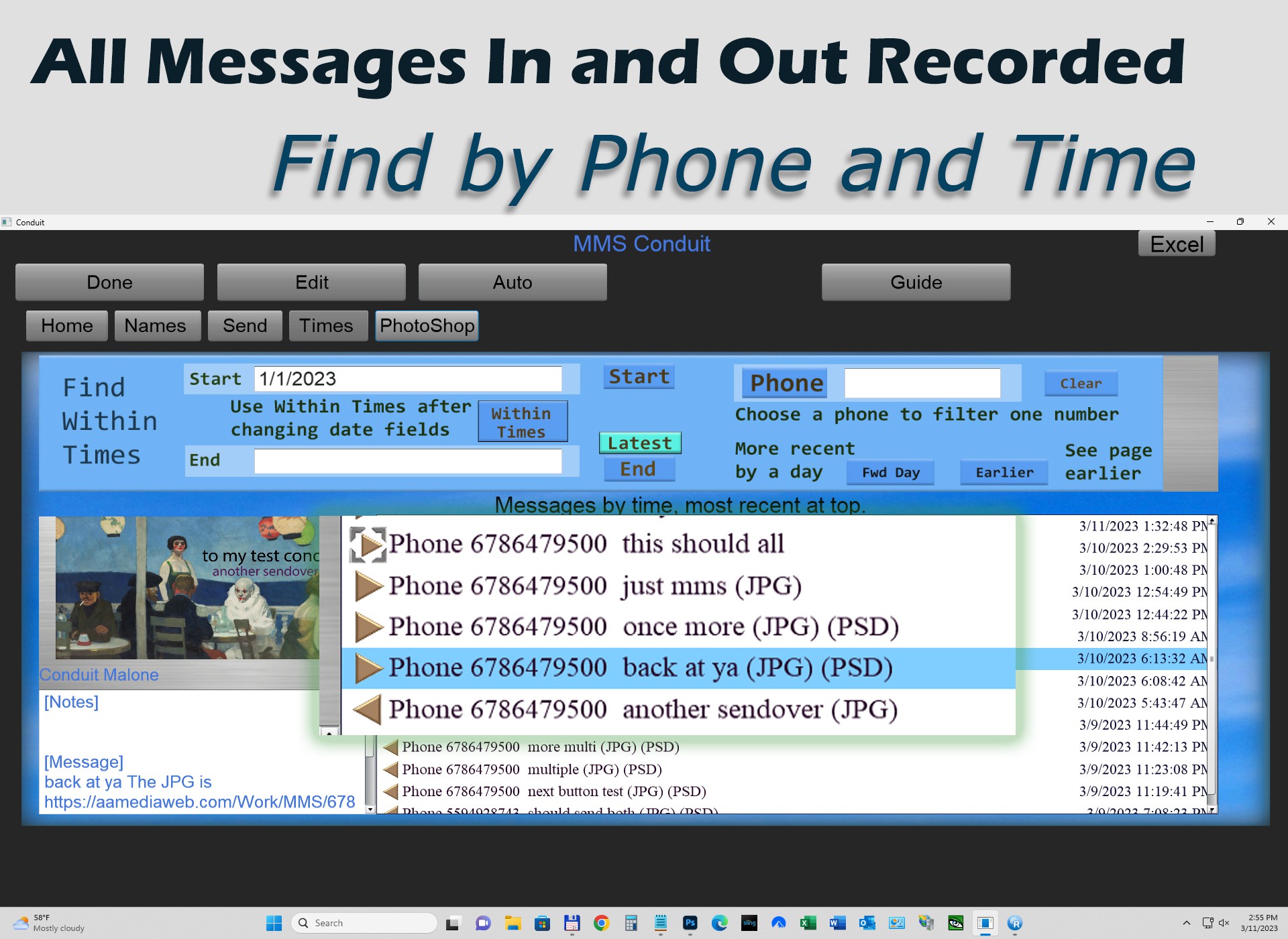
  • Messages Recorded by Phone and Time
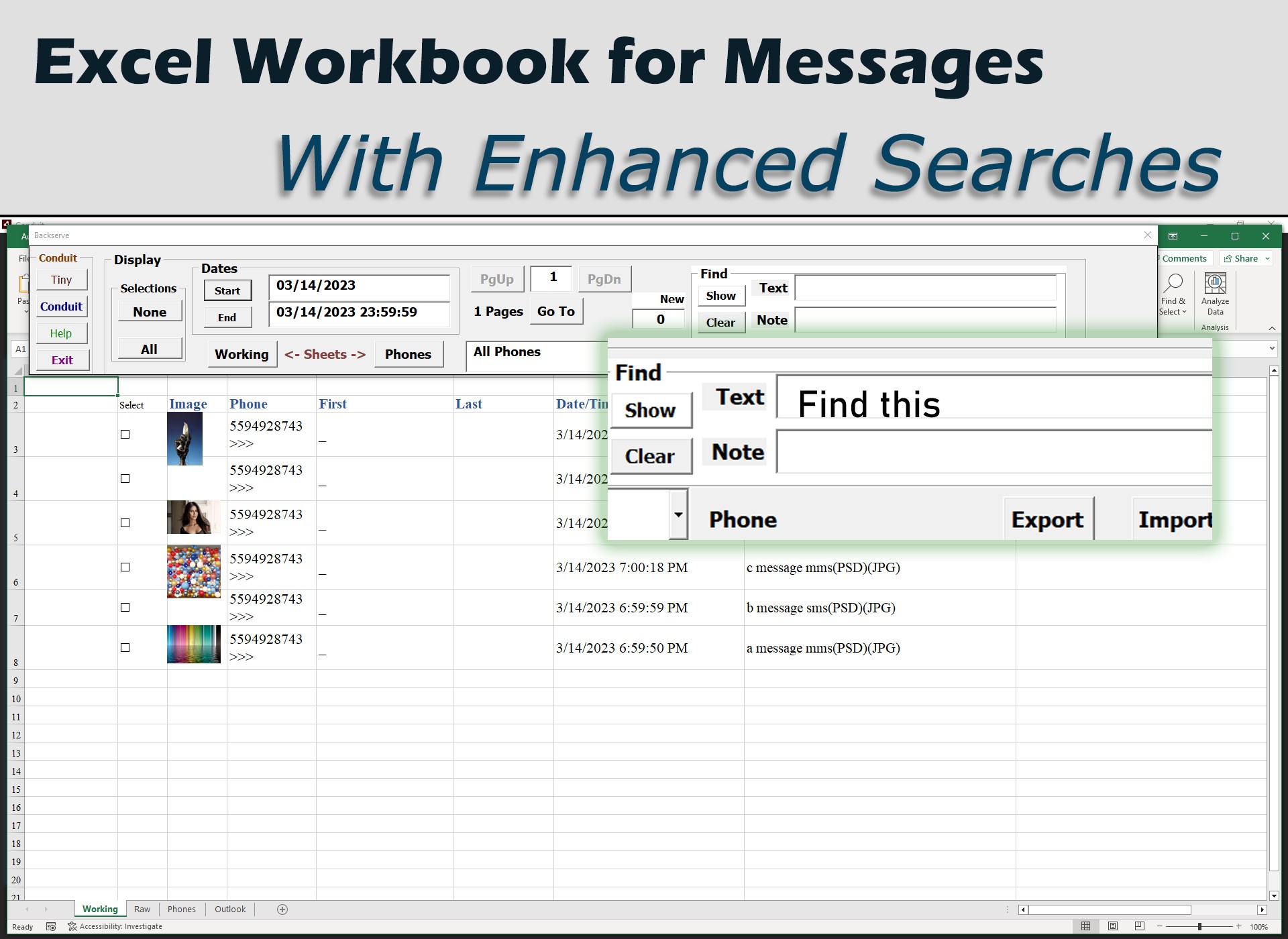
  • Excel Workbook for Advanced Searches
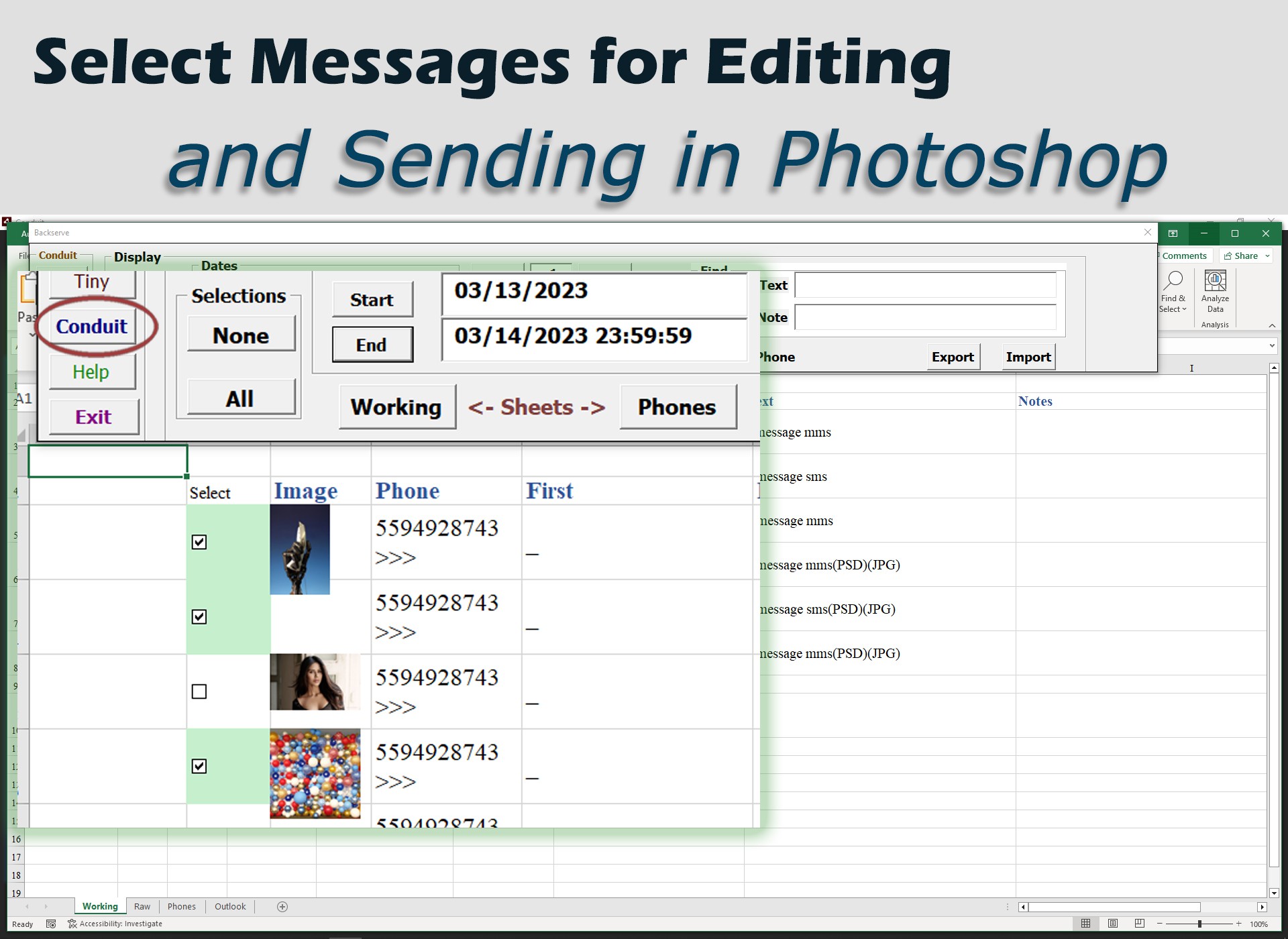
  • Select in Excel for Editing

MMS Conduit Features

Your Images are Secure

Photos come directly to your machine, they are never examined, shared, or backed up in any way.
The separate Secure phone number also keeps traffic on your personal phone down, it's nice to have a buffer like that.

Easy to Use and Manage

Your messages through the Secure number are able to be searched by time, originating phone number, and you can attach a name and email to any of the incoming numbers.
You can send to often used numbers with an Action and messages can be Auto-routed while you edit in Photoshop.

Reasonably priced Usage fees

Our prices per message are .01/sms and .03/mms in and out. There are no limits, surcharges, nothing like that. If you get a lot of traffic through the Secure number, you are really getting your money's worth.

For Windows PCs now

Our MacOS version is currently in Beta testing, many of our customers use the Windows environment of Macs, but really want to use the Conduit directly in the Mac OS.
Subscribers for the PC will carry across to the Mac when it is released.

The MMS Conduit Streamlines the tedious part.

It's YOUR media!

How does the Conduit Work?

Our phone network provider allows us to programatically route SMS and MMS messages through our servers, where your Conduit gets them. When you send to your clients, messages are sent quickly through the provider directly from your computer.

Next step is to download the Conduit program, currently for Windows PCs. (Soon we will have a MacOS version).
From simple installation through simple subscription, the Conduit keeps you informed.
While installing the download, the Conduit program makes sure all the high technology we use is supported by your computer.
Once you complete the installation steps requested by the Conduit, and it is happy with the requirements of your computer, you are asked to register with first, last, as well as your phone and email.
Also you need to provide the desired Area Code you want for your Secure number. This is the area code you want the users of your Secure Number to see when they send messages to you. When you subscribe, you get 100 free messages on the monthly plan, 500 free semi-annual plan, and 1000 free on the yearly plan.
After registration the Conduit displays the Subscription launch point. Please purchase a subscription from within the Conduit, once you Check Out it will assign your Secure Number within the desired Area Code you provided.
Be a direct Social Media provider, allowing your Photoshop to access photos from you and your clients.
Subscription prices are 29.95/month, 59.95/semi-annual, and 99.95/yearly. There is a 10.00 initial pre-fill, pre-fills are 20.00 after that. You get 100 free messages on the monthly plan, 500 free semi-annual plan, and 1000 free on the yearly plan.
Make sure your Photoshop version is up to date, there is only one simple setting to hook Photoshop to the Conduit.
Every copy of Photoshop has a "Remote Connection" in the Plug-In preferences (under the Edit/Remote Connections menu selection). Enable the check-box for Remote Connection, then enter the Password 'conduit', hit OK.
Then restart Photoshop so that these changes take effect.

Message Conduit Overview

This program is an alternative to the overcrowding of your personal phone, especially for the multitude of photos that are involved with everyday activity. It gives you the ability to directly access photos that you take or are shared with you by your friends in a very organized way, sitting at your desktop computer.


Basic Operation

You can process incoming photos in Photoshop directly from the Message Conduit, with no transfer or downloads from your personal phone, saving you valuable time. You don't have to release your personal number to anyone to still send and receive images.
There are many ways the Message Conduit provides privacy and simplicity for both personal use and for many business uses.
This program allows you to send MMS images from any device through your 'Secure Number'. Then these images are delivered directly to your computer through the program.
Images and texts are always absorbed by the program whether you are in attendance or not, the Conduit does not have to be running to 'collect' your messages.
It's better to have the Conduit running most of the time, even mimimized, since it can absorb and manage the flow, avoiding a large 'intake' when you start the program up.
The following sections are shorter descriptions of the many Conduit functions to give you the basics of what it can do. More information is available in the Help Guide within the Conduit Program. . .


Auto Edit Incoming Images

When you want to get incoming photos directly into your Photoshop, a special Auto mode will bring them quickly up for editing.

Direct to Photoshop

The Auto mode is additional to normal message saving. All incoming and outgoing messages are saved by Conduit, accessible in the Times tab, the Auto mode lets you route them real-time for editing.
When you are in Auto mode, you get to quickly load images directly into Photoshop, in an orderly and sequential way. If you leave Auto mode you still can retrieve images through the normal Times message list (see the Messages by Time section).

Start Auto Mode

The Conduit starts up in the Auto mode with that button blinking, waiting for new incoming images.
Start in Auto

Stepping to Next

Every incoming MMS image from that point on is tallied in the 'Next' button, which appears after the first incoming image as 'Next 1'. The number after the word Next increases as you receive MMS images.
Incoming Next
First incoming since start of Auto mode.
Start in Auto
Second incoming since start of Auto mode.
When you click on the Next button, the next image in the process is loaded into Photoshop for you to work with. The number after Next then decreases. In effect, the Next button shows you how many images are left to process in the Auto session.
Load Next Image
First of the two pending images are loaded.
Load Next Image
The second pending image was loaded.


Messages by Time

One of the most important functions of the Conduit is to help keep large numbers of messages organized and available. Filtering images (and texts) to see just the frame needed is a valuable assistance to working with them in Photoshop.
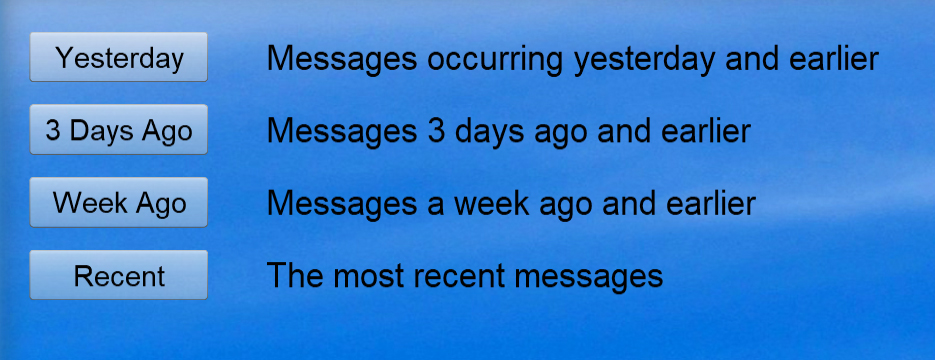
When you use the Mesgs button below where Photoshop is displayed, it brings you to the Message center, a convenient place to choose your next step. On the upper left are several range choices for working with your messages, today, 3 days, and a week in the past. Any of these will bring you into the Times tab area. When you have already chosen a range, just use the Times tab to keep that same list of messages.
Time Methods
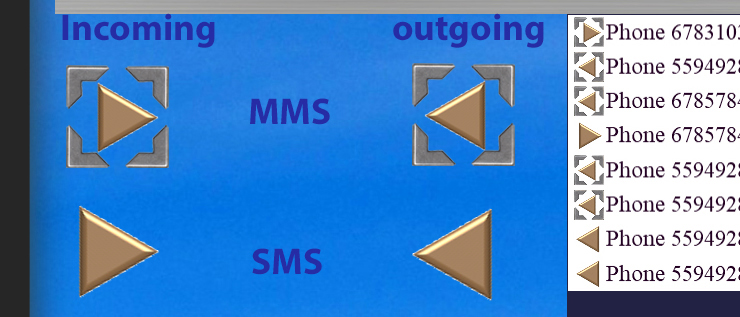
The message list contains entries with an icon at the left, which indicates what type, MMS or SMS, and what direction, incoming or outgoing.
Icon Meanings
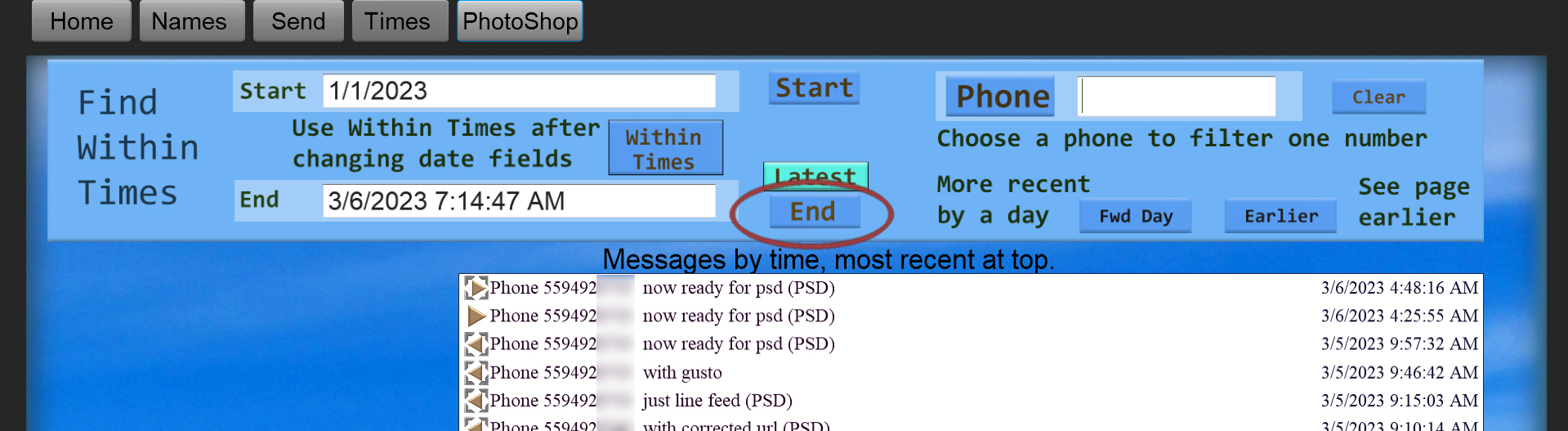
After selecting the last week worth of images, the list shows what messages occurred in that time.
Start Time
There are other time/date operations allowed, and there is also the capability of selecting a single phone number for display of messages. The Guide within Conduit explains those in detail.


Selecting and Editing a Message

When you have targeted the message you want to work with next, select it in the list to bring up the information about it.
Select Message
The Edit button then allows you to bring it directly into Photoshop.
Select Message
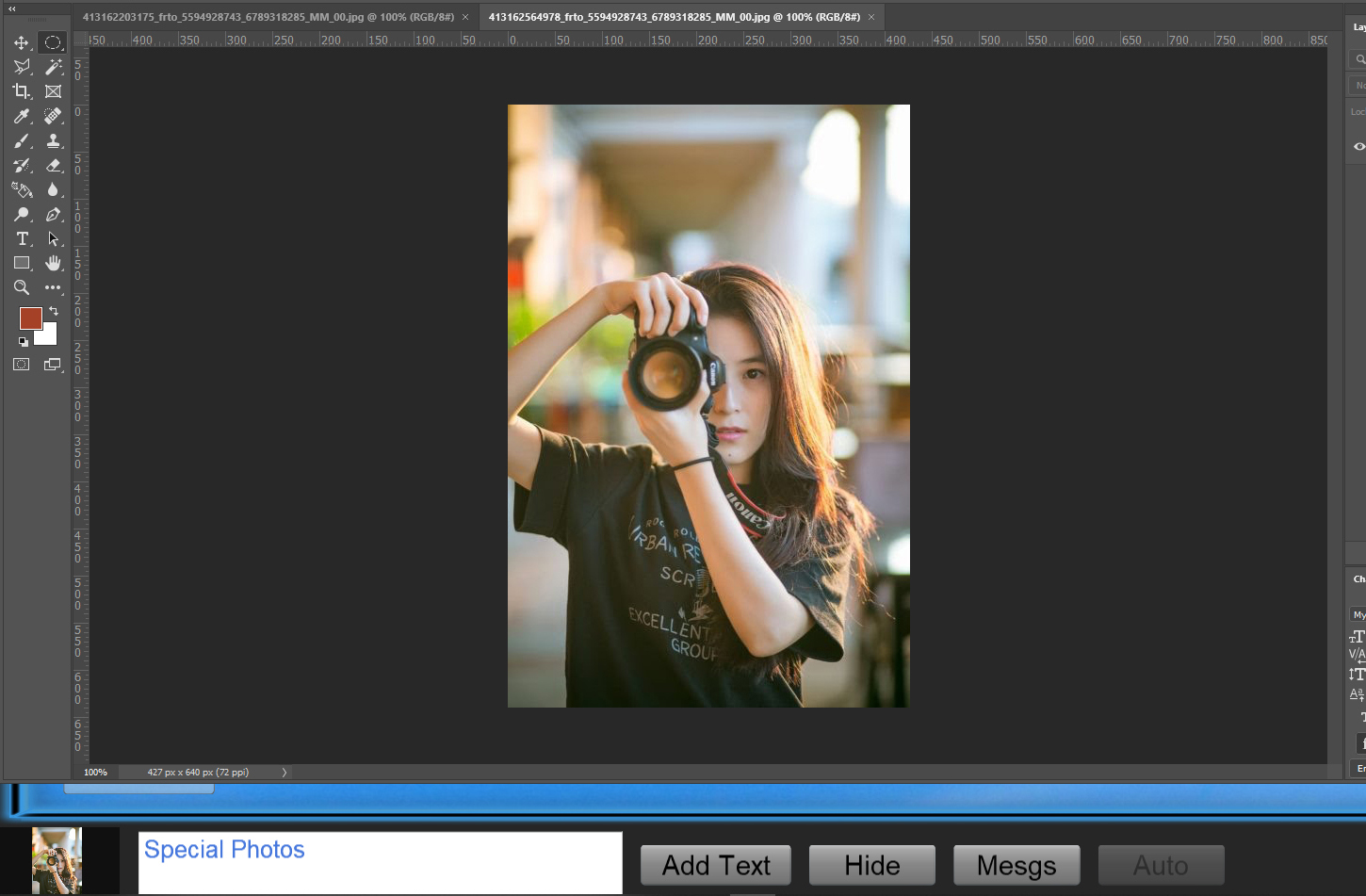
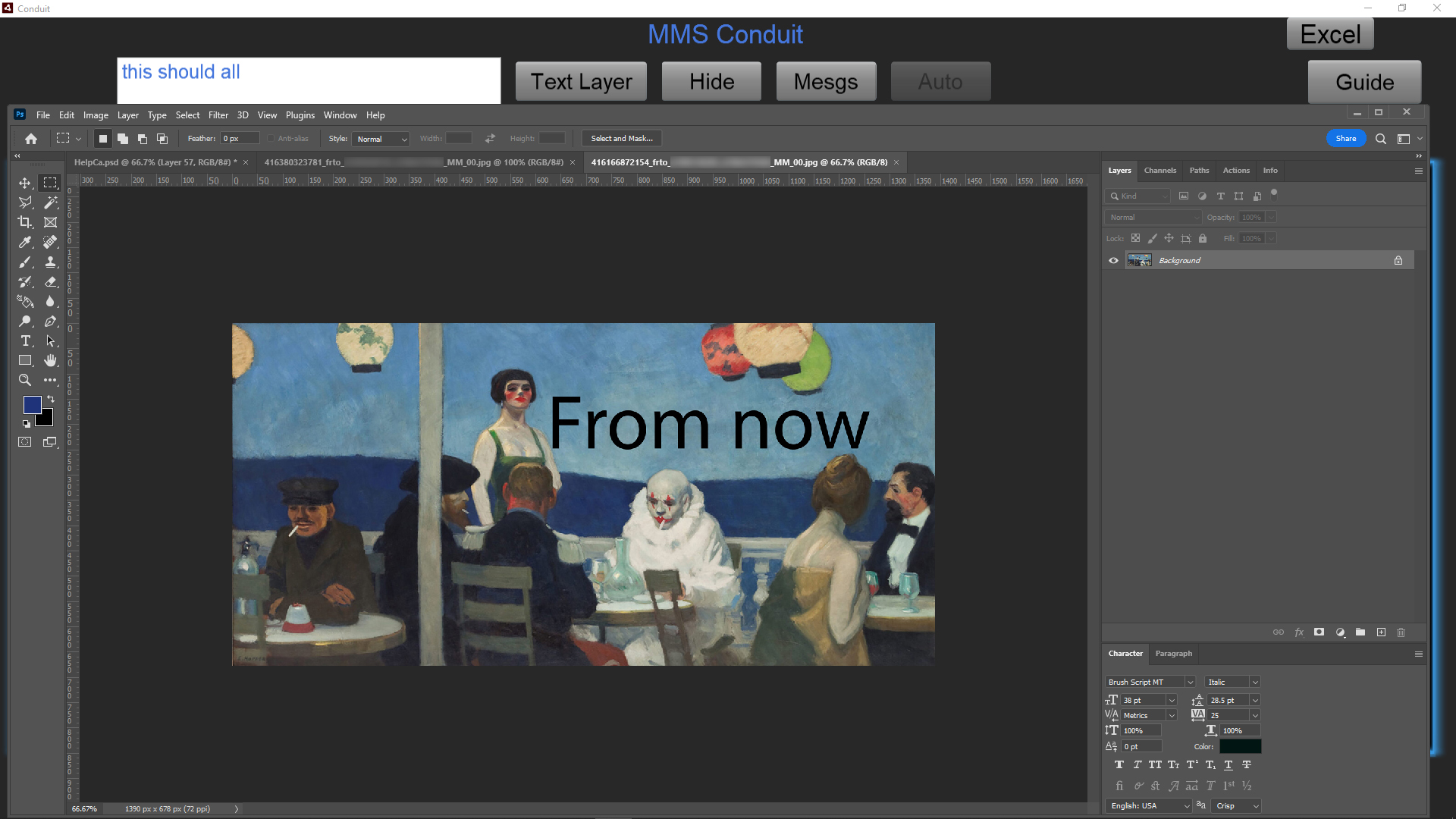
There may be text information which many times you wish to include in the image itself. Use the Add Text button to accomplish that, I changed the text and did that, it adds it in the lower part of the image as a text layer.
Select Message
You can edit an image in any way you want and if you File/Save the multi-layered file as we have shown here, the next time you Edit the image from the Message by Times list, it will bring up the edited file (PSD).


Play Action to Send Message

Create a Send Action

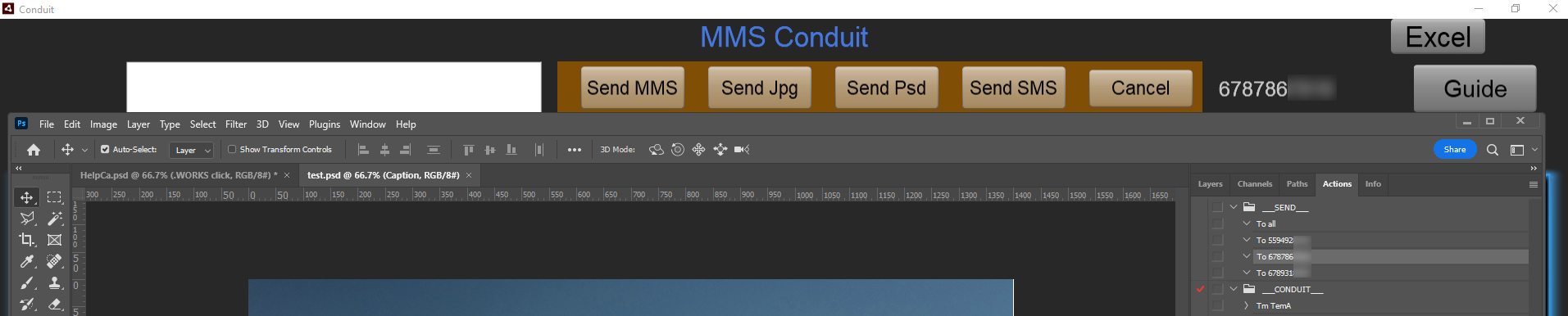
To send images directly from Photoshop, you can create an Action that will cause the current image to be sent as an MMS. The Action name contains the phone number that you wish to send the image to.

Create an Action set

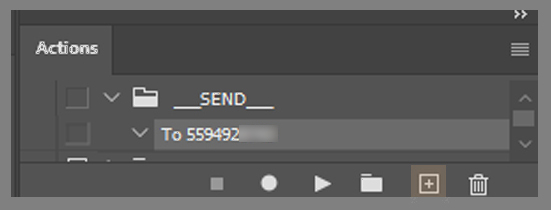
It is a good idea to create a new action set to contain the actions that are used to send the MMS with. In our example Action creation, we first made a new Action set ___SEND___.

Create an Action to Send to Phone Number

Click on the New Action button on the lower part of the Actions tab, make sure you are on the Action set, (___SEND___) in our case.
New Action
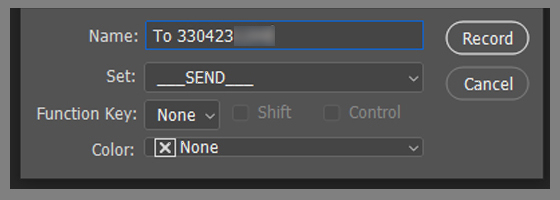
Enter the phone number in the Action name with the 'To ' in front of it.
Action Name
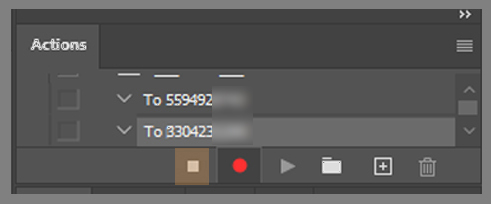
The Action will start recording, but we don't need any step within the Action, it will be an empty Action.
Record Action
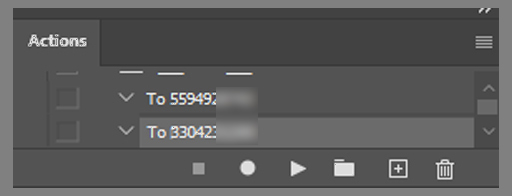
Stop recordimg, the Action will remain, it only needs to be played, it does not do anything else.
Stop Recording

Send a Copy with an Action

Whenever you want to send a snapshot of what you are doing in Photoshop, all you need to do is to play the Action, the next steps will happen automatically.
Load an image, or perhaps receive it from your Secure Number. Play the Action when the file you are working on shows the content you wish to send.
Play Action
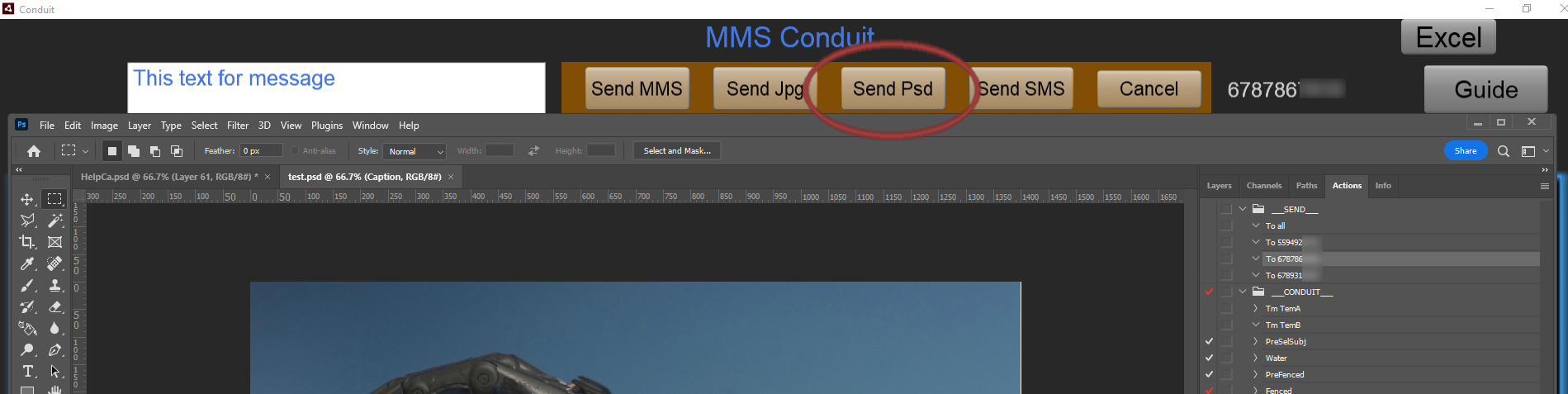
The lower area under Photoshop turns orange to allow you to complete the message. You can send an MMS or SMS (without the image)
Complete Message
Complete the text message, choose Send (MMS) or SMS buttons, then the orange highlight goes away and normal function is restored, your message is being sent.
If you do not wish to send a message, click Cancel.
Send SMS
The message is sent and is recorded by the Conduit, you can always retrieve the message under the Times tab, where all messages in time sequence are available.


Template an Image

The Conduit has an important post-edit feature called Templating. Specially created PSD files allow images to be incorporated in attractive containers for sending to friends, clients, prospective customers.
They feature a frame, automatic caption, logo layer, and watermark. These are intended to be customized by you in order to produce pleasing results with your personalized presentation.
Additional templates can be constructed and added to enhance your communication capability.
Bring up any image that you have received and possibly edited.
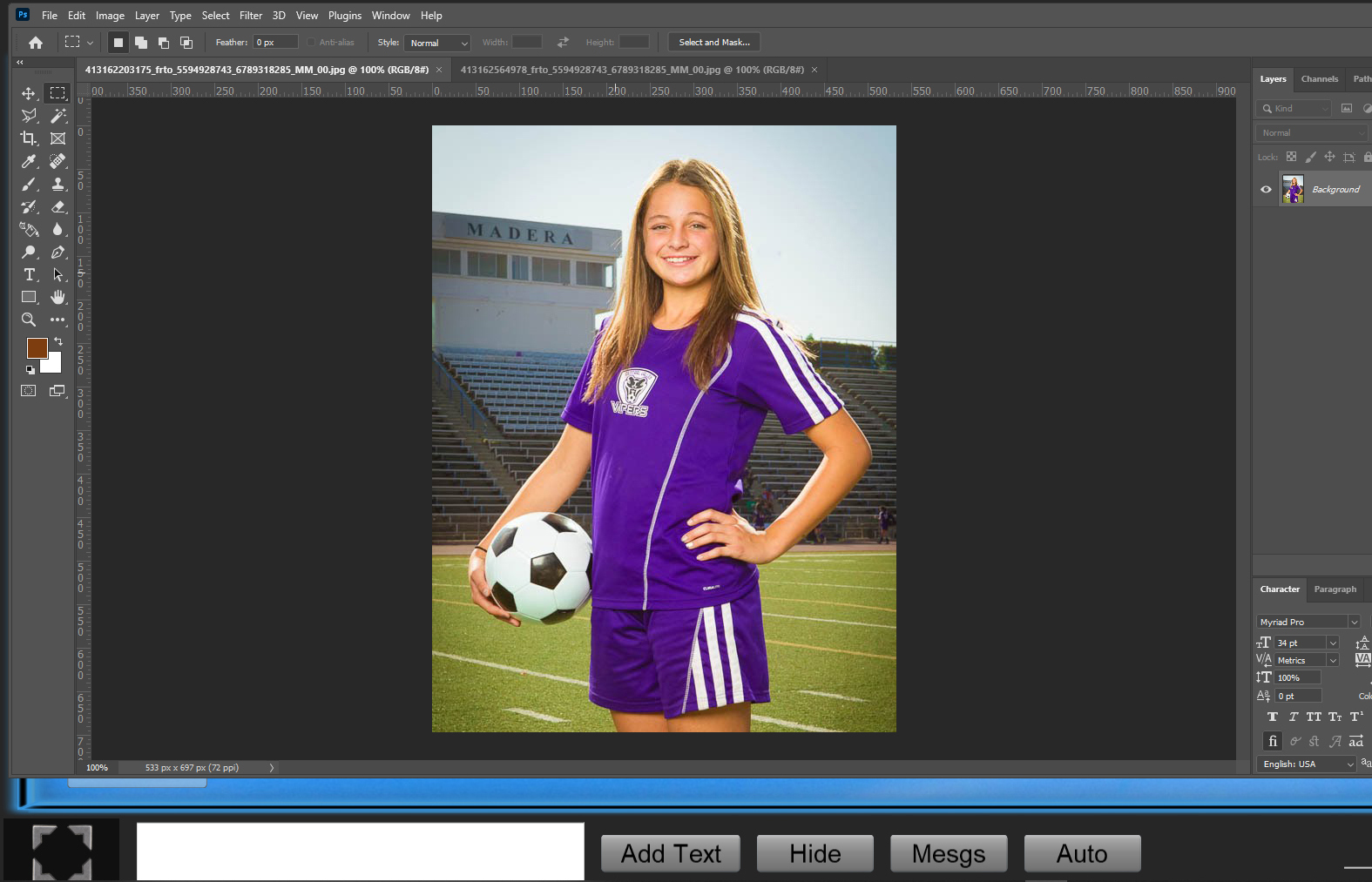
Edit Image
In the Actions window of Photoshop, which is available by using Photoshop menu item Window/Actions, you will see the ___Conduit___ Action Set containing the Action 'Tm TemA'.
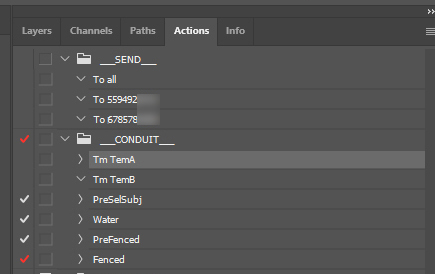
Template Actions
The action is empty of any process themselves, they don't do anything to an image, but Conduit understands what to do when you play the Action, it will perform a series of steps that will result in a templated final image.
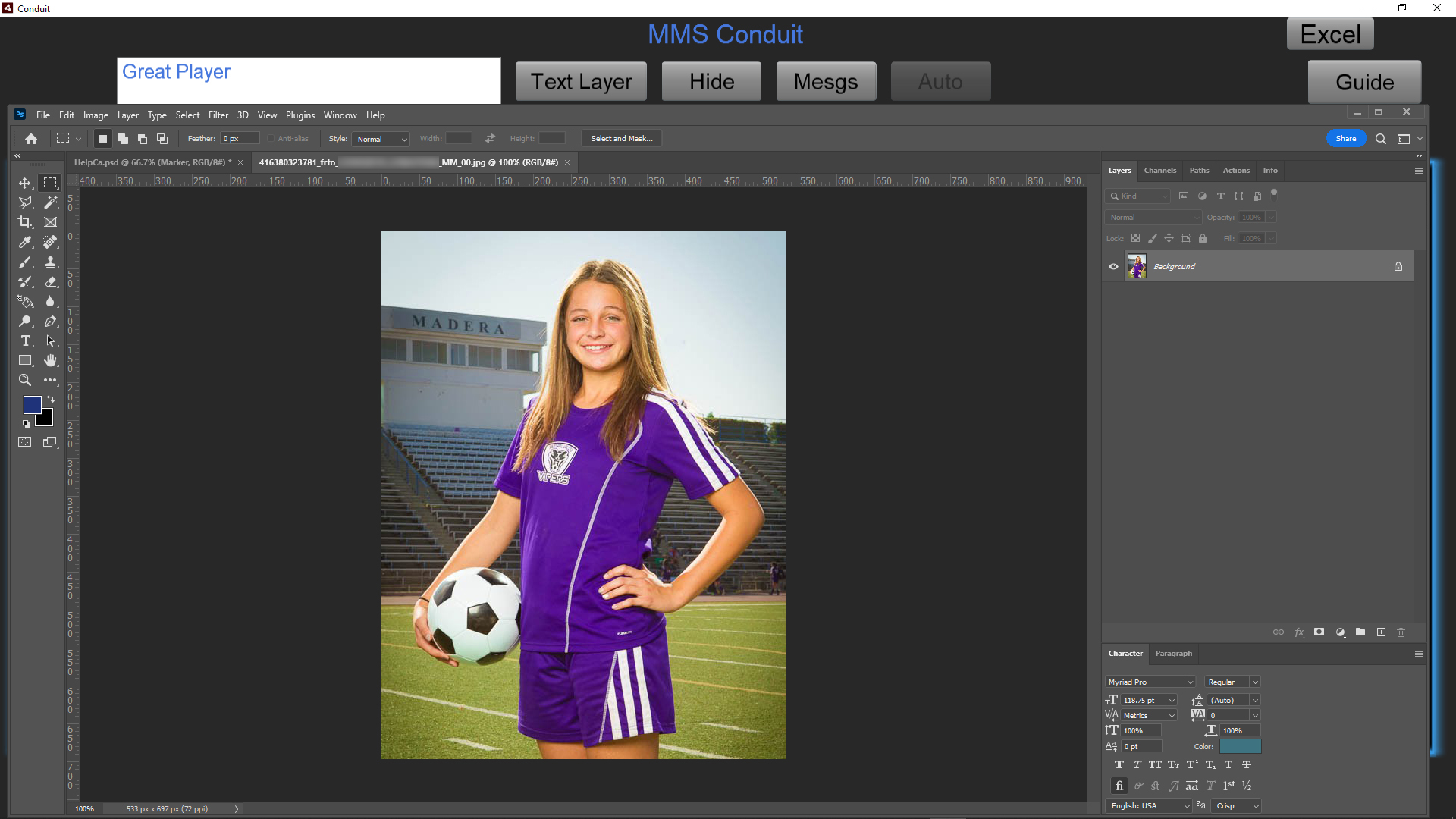
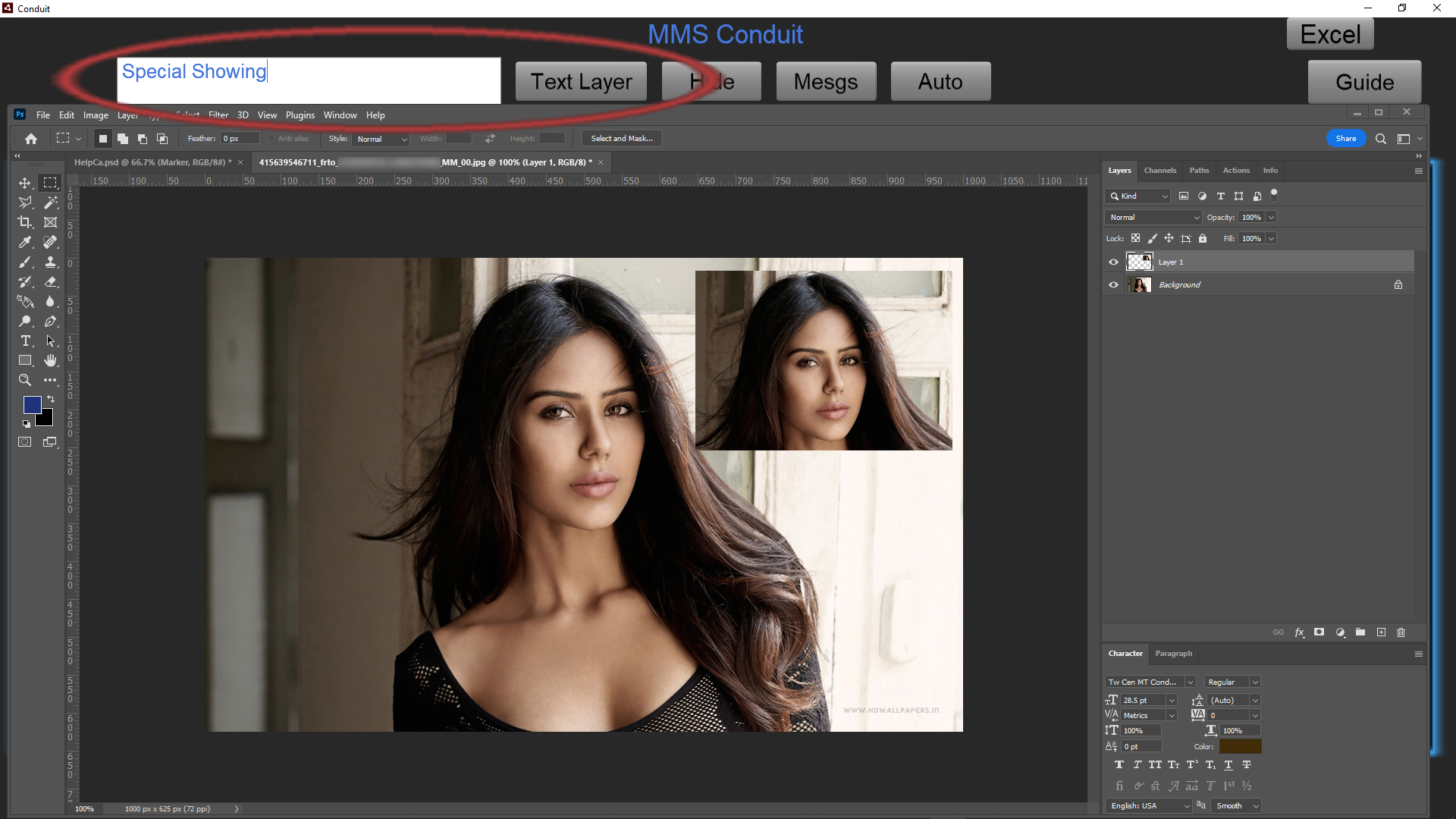
On the lower part of the screen is a text field for setting the Caption for the template process.
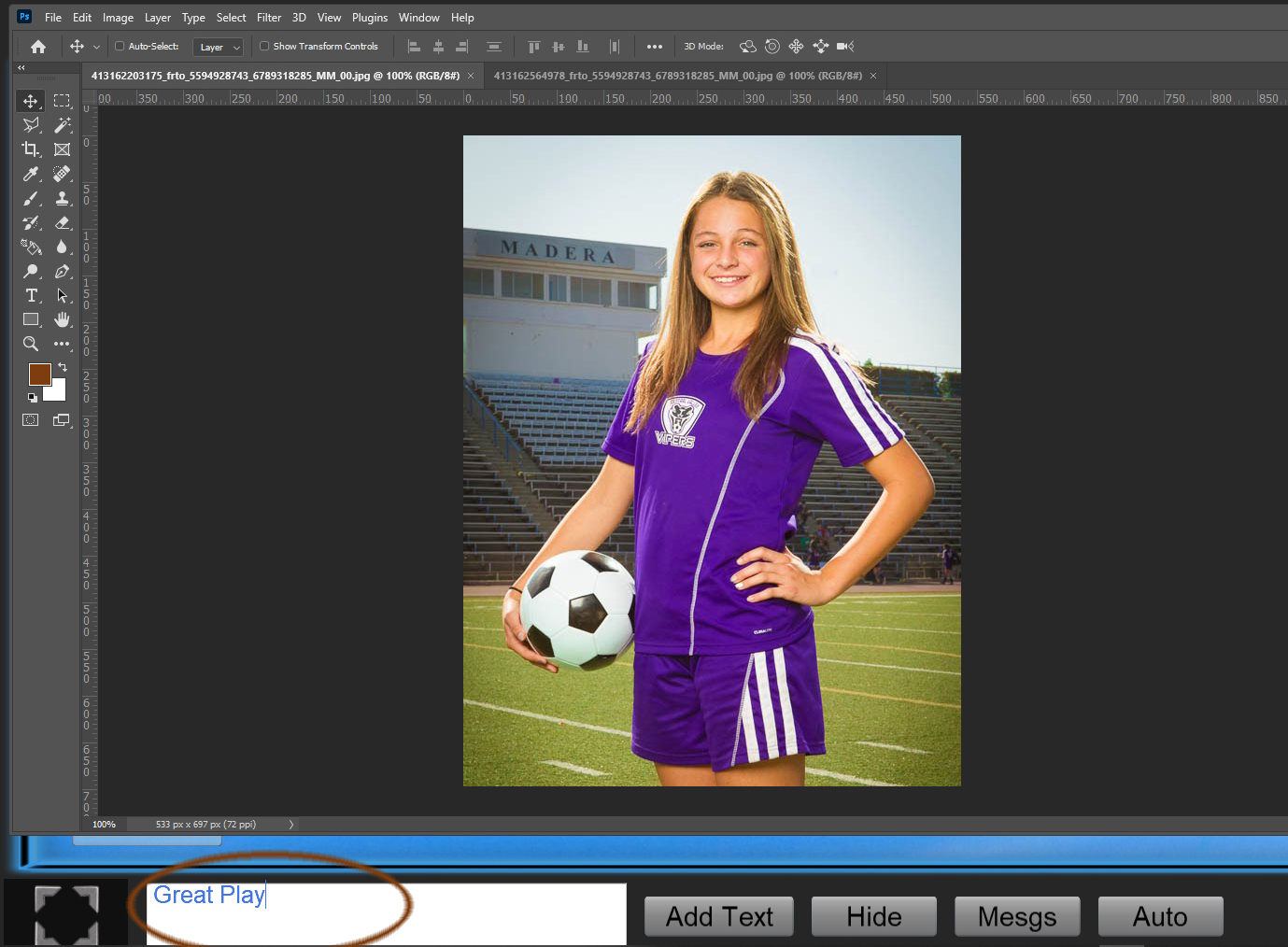
Caption Field
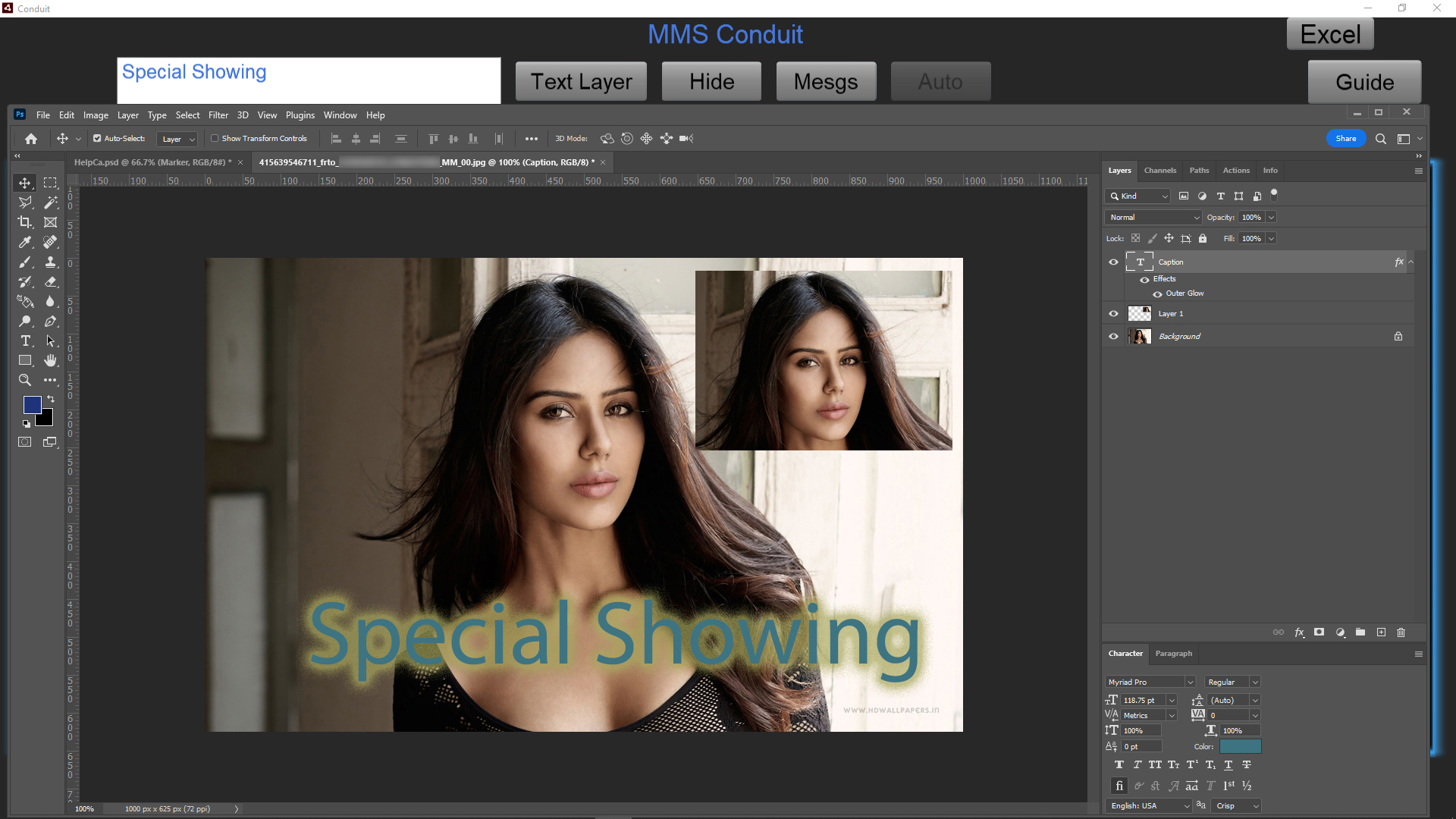
Once the Caption is set, you can play the Action 'Tm TemA' and after a few behind the scenes operations by Conduit, a templated version of the image is created.
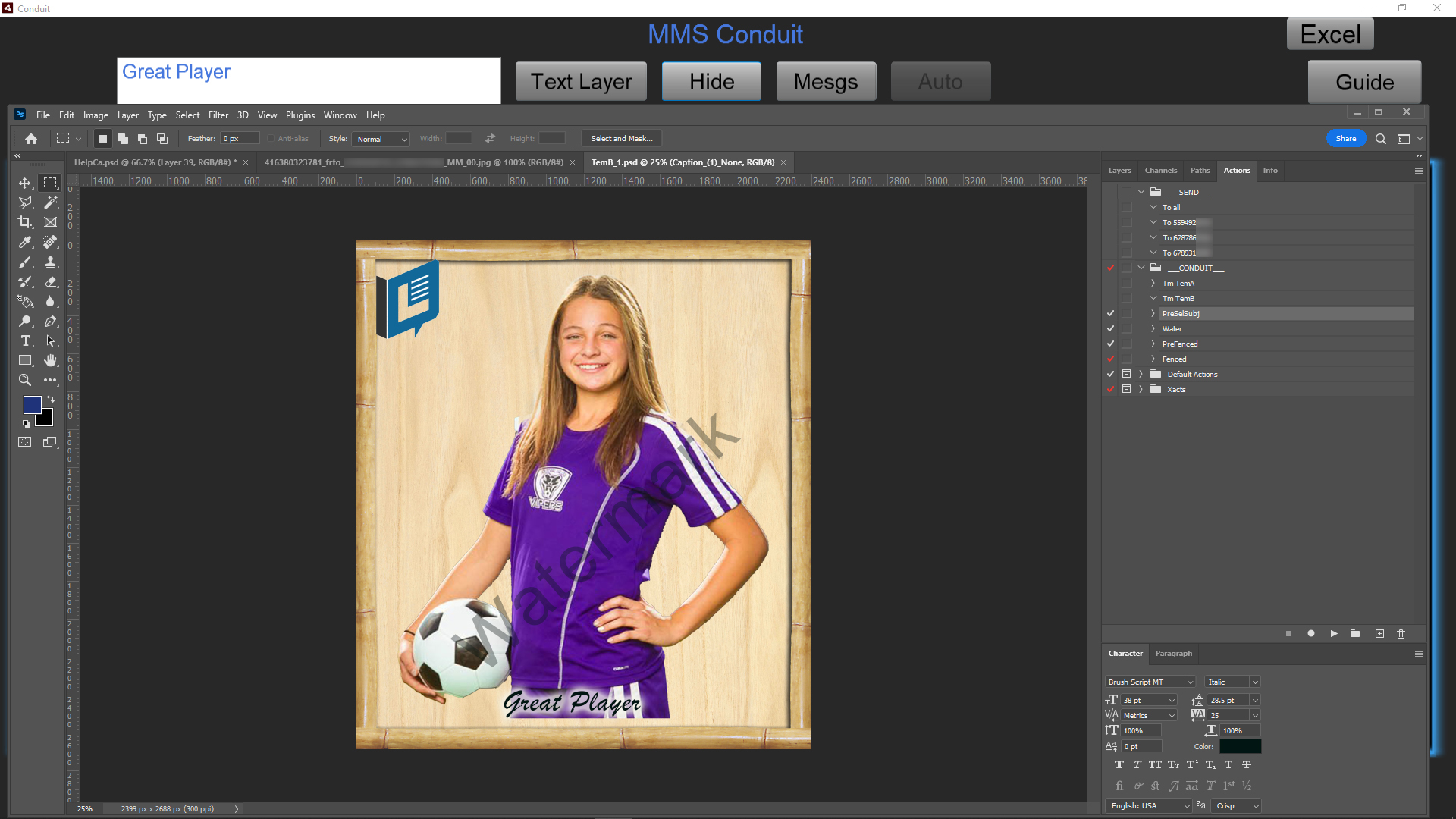
Templated A
Template A uses the raw photo and fits it into the frame, always keeping the top area of the image to be templated as the anchor point. This avoids chopped off parts of people in the images, which would happen if you focused on the center.
The Template A can be copied and you can set up your own (single word named) 'Tm Name' Action. The Action to play it can be placed in any Action Set of your own.
We will make a Template guide soon that shows the various ways to construct templates along with additional Actions that enhance them. This is all designed to be automatic.
After saving, you can post-edit the templated result files and modify it further.